
Challenge — Animating Objects
Tutorial
Beginner
+10XP
30 mins
(23)
Unity Technologies
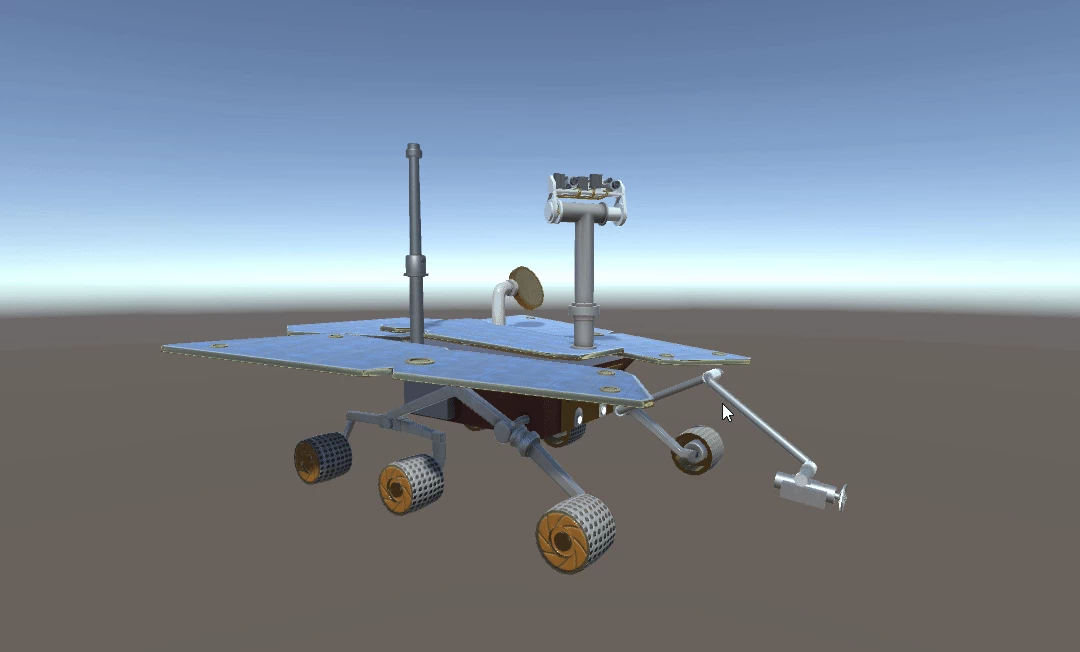
In this challenge, you will animate Cameras on the Mars Rover using Animation Clips.
Resources
Languages available:
1. Overview
In this challenge, you will animate Cameras on the Mars Rover using Animation Clips. This gives you a chance the practice the skills covered in the previous tutorial.
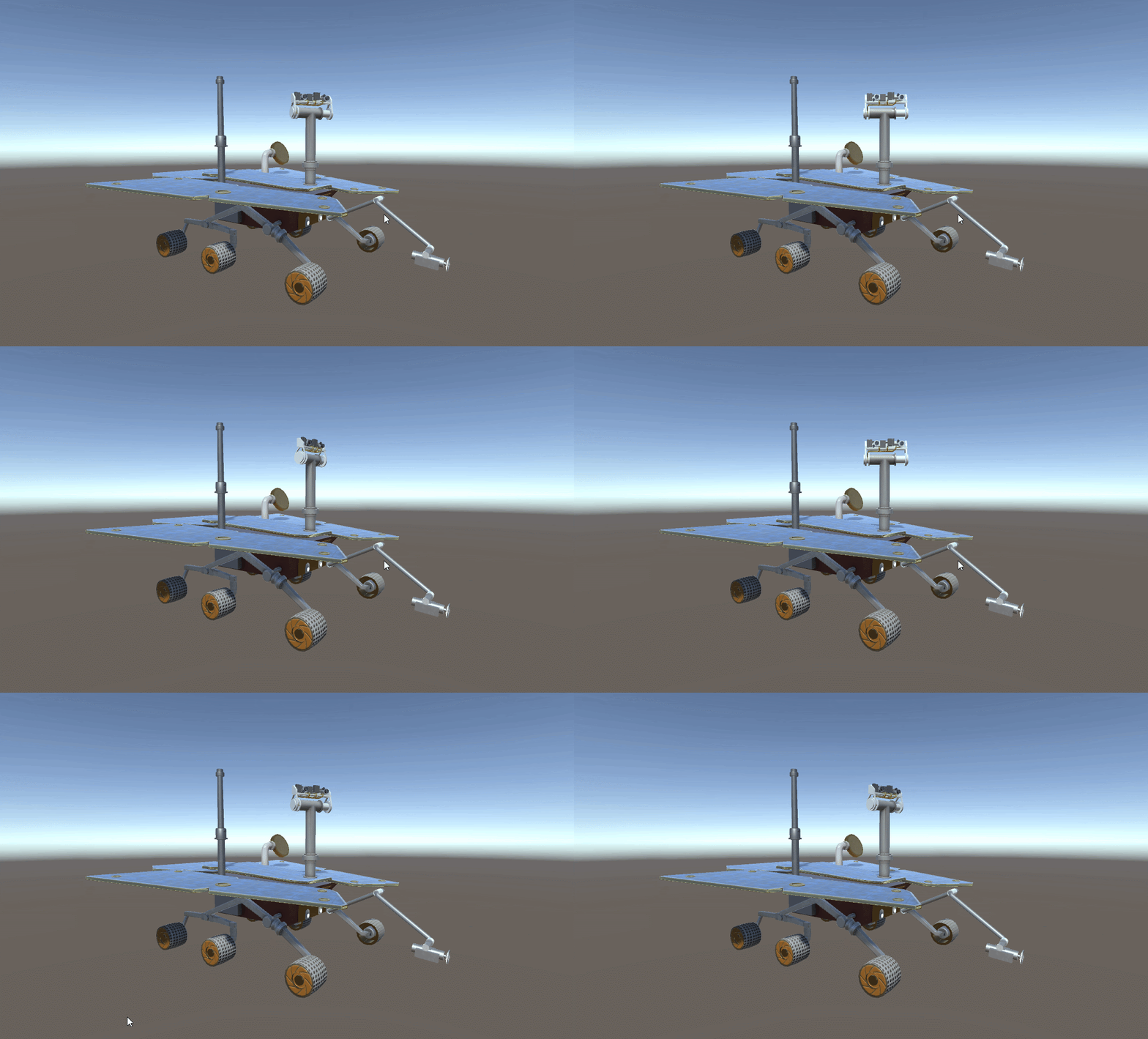
In this challenge, you will animate the Rover Camera. To do so, you’ll need to:
- Create an Animation Clip
- Add the rotation property and Keyframes
- Rotate the Rover camera back and forth
2. Create an Animation Clip
Open the Animation window. With the GameObject Roverhead selected in your Hierarchy, create an Animation Clip.
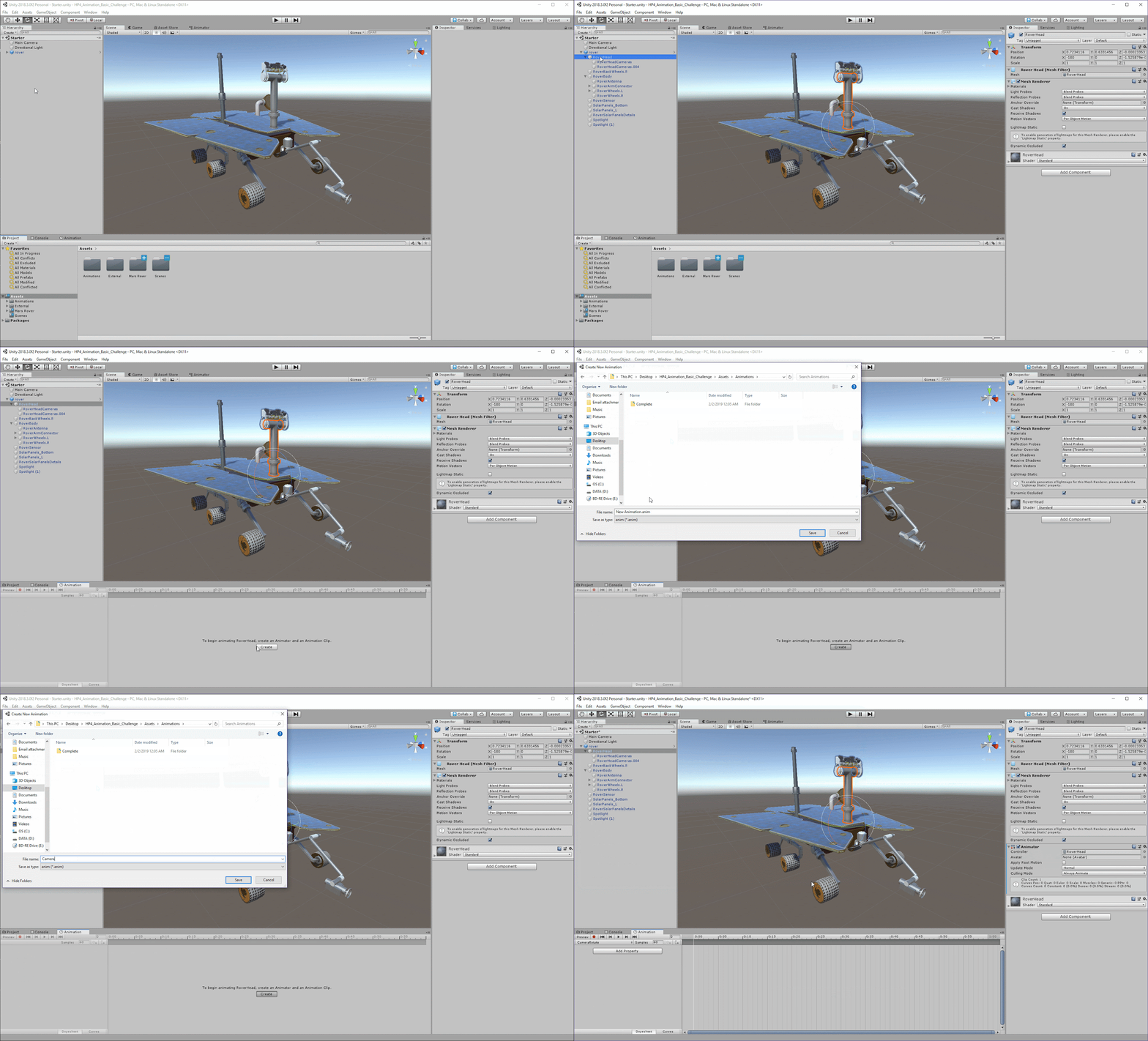
(Hint: RoverHead is a child of Rover. Make sure to expand GameObjects in your Hierarchy (Alt + Click) to see all the parts.)
- Open the Animation window by navigating to (Window > Animation > Animation).
- With RoverHead selected in your Hierarchy, click Create in the Animation window.
- Name the animation CameraRotate and save to your Animations folder.
3. Add the Rotation Property and Keyframes
Add the Rotation Property to your Dopesheet to expose values that you can adjust.
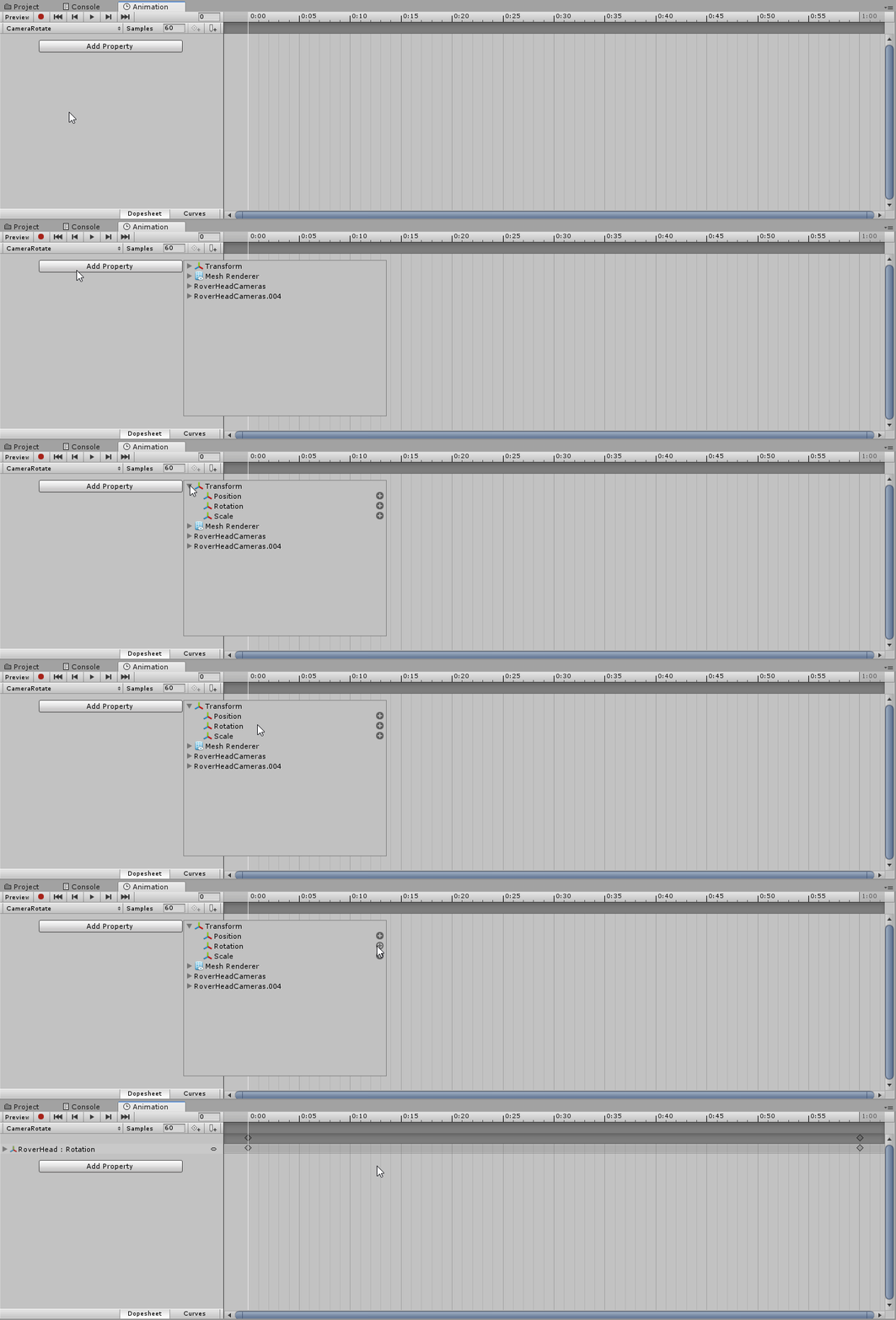
- Click Add Property to open up the property list.
- Select Transform > Rotation.
Add a Keyframe at 1.30 seconds to mark where the Rotation property will change.
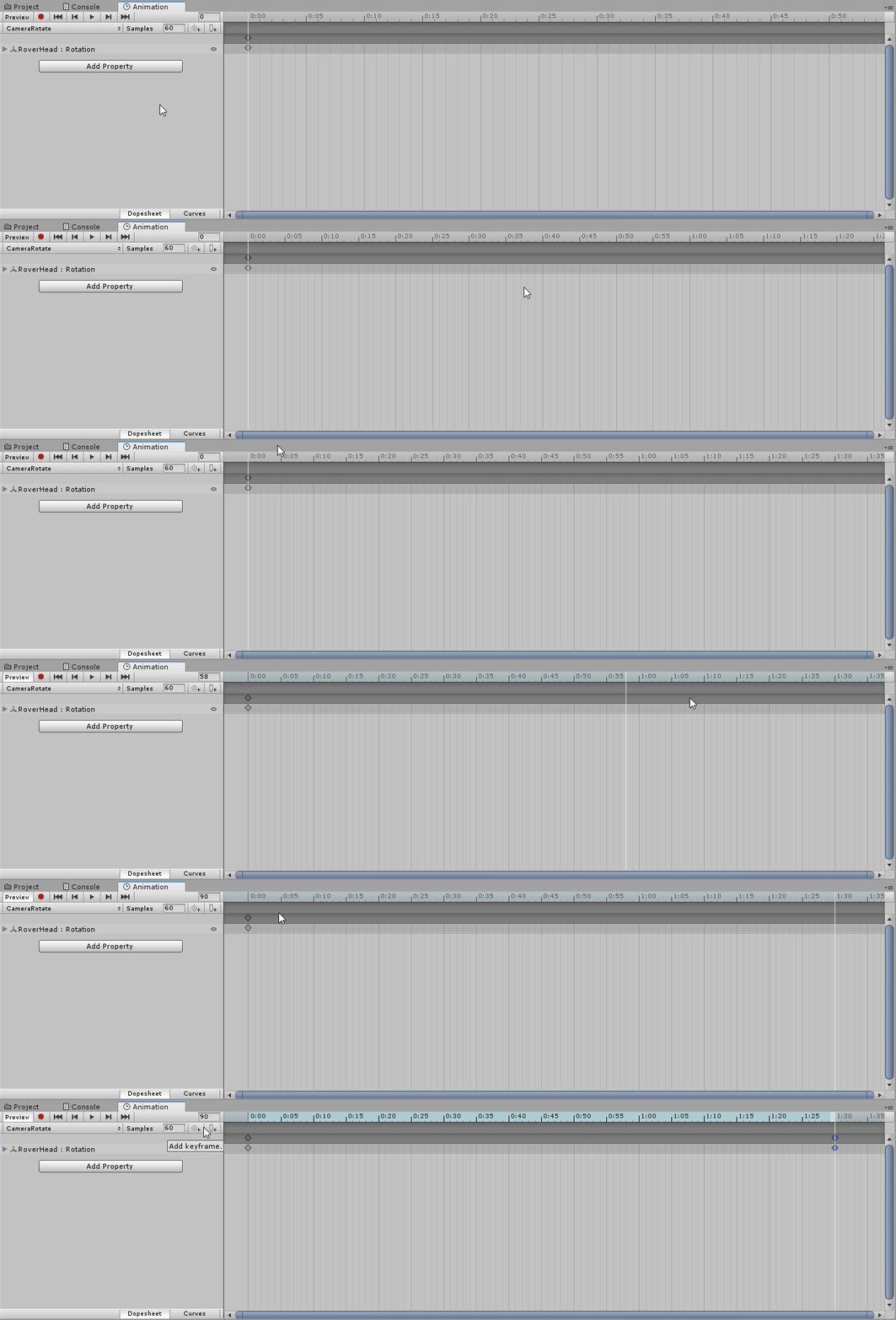
1. Use your mouse scroll wheel in the Dopesheet so you can see the 1.30 seconds mark.
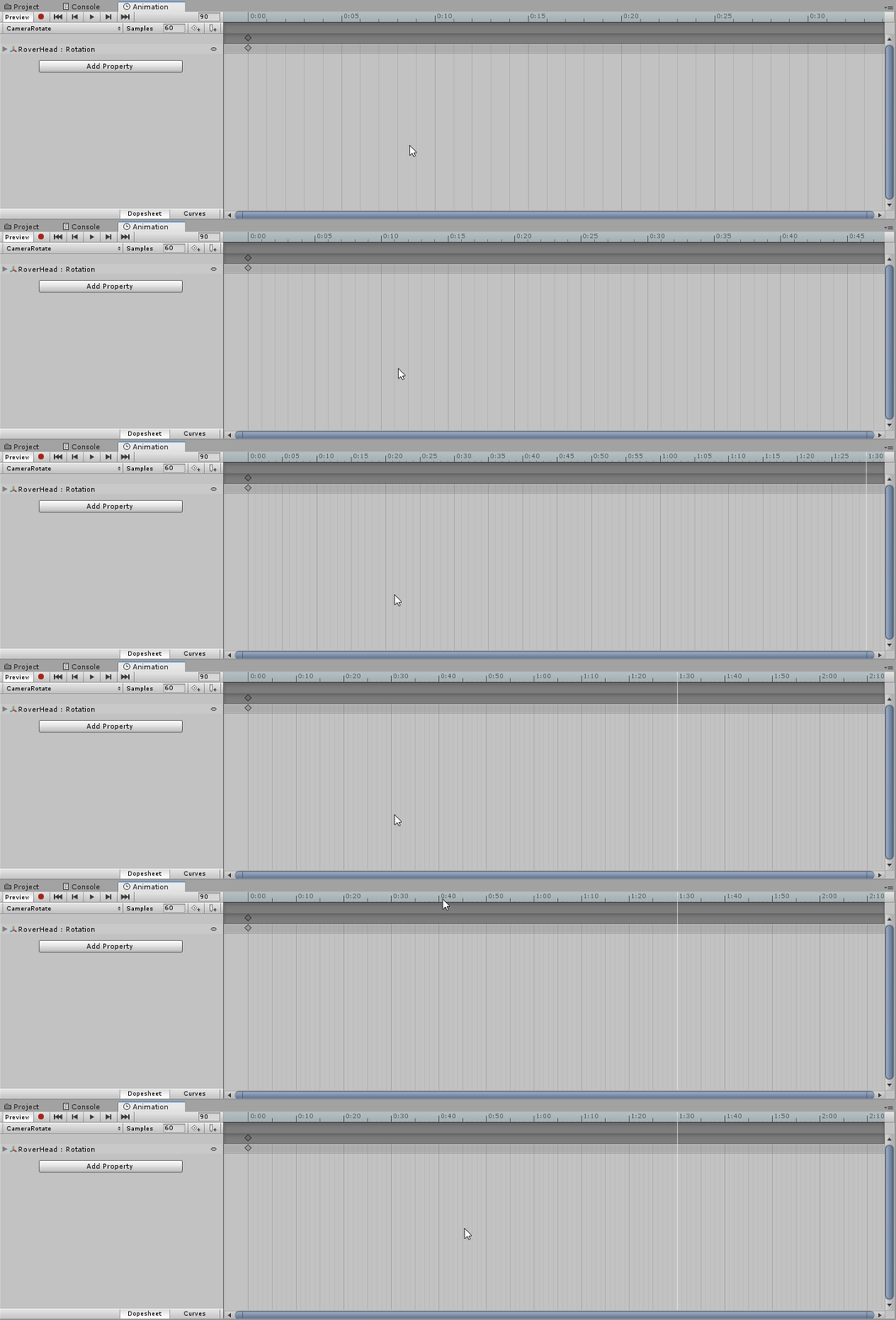
2. Scrub (drag) the white line to the 1.30 seconds mark.
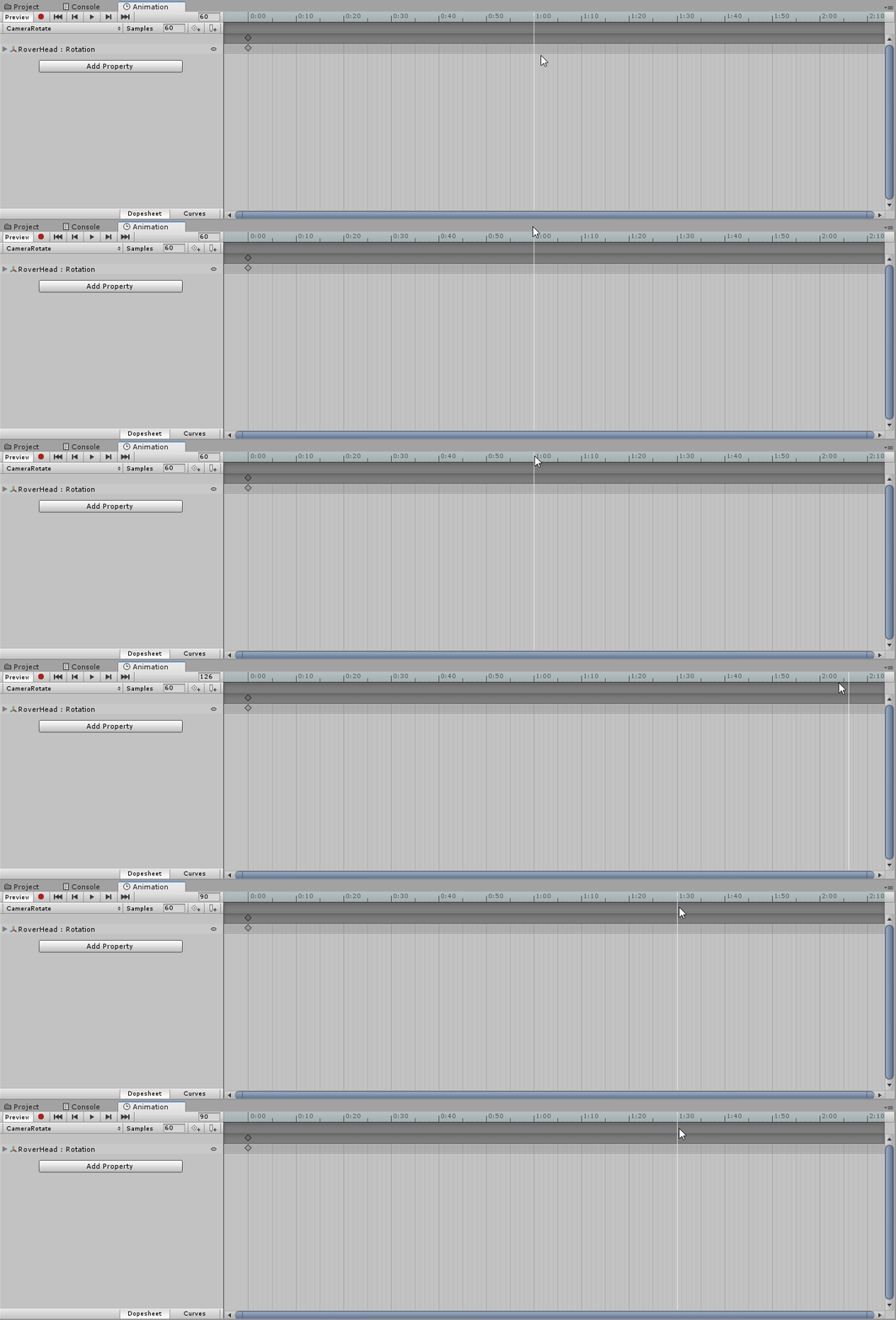
3. Click the Add Keyframe button to see Keyframes added.
4. Rotate the Camera Back and Forth
Input 65 in the Rotation.y field at your end Keyframe to rotate to one side and loop the animation.
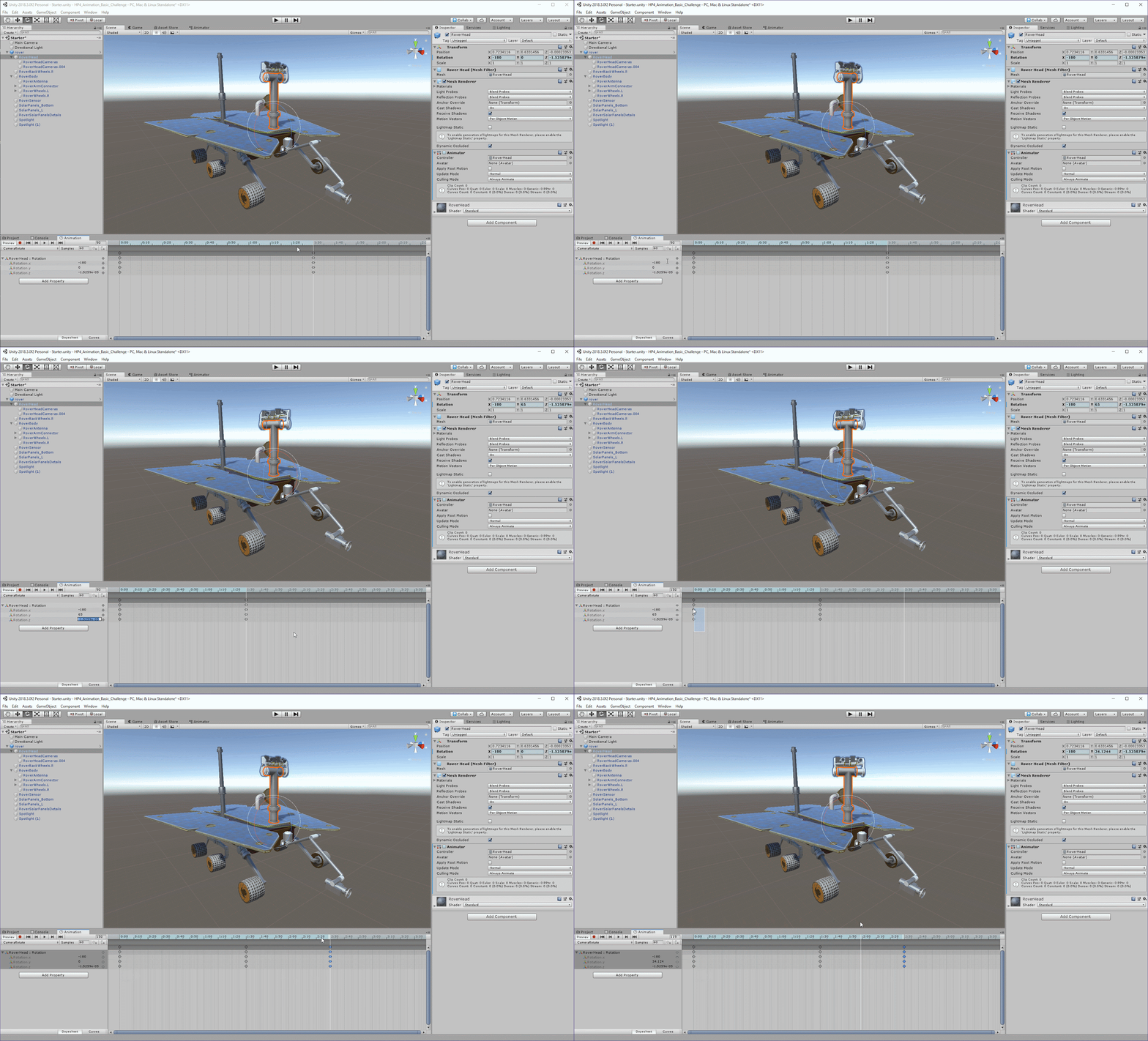
(Hint: Expand RoverHead: Rotation in the Property List to find the Rotation.y field.)
- In your Dopesheet, expand RoverHead: Rotation.
- With your scrubber on the end Keyframe, input 65 on Rotation.y (currently it will say 0).
- Add another Keyframe at 2.30 seconds.
- Copy your Keyframes at 0 and paste them at 2.30 seconds.
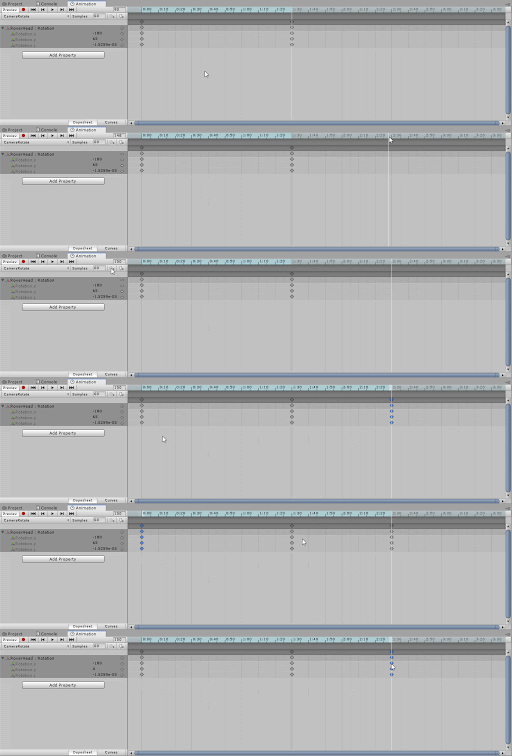
--------------------
Test your animation by pressing play in the Animation window.
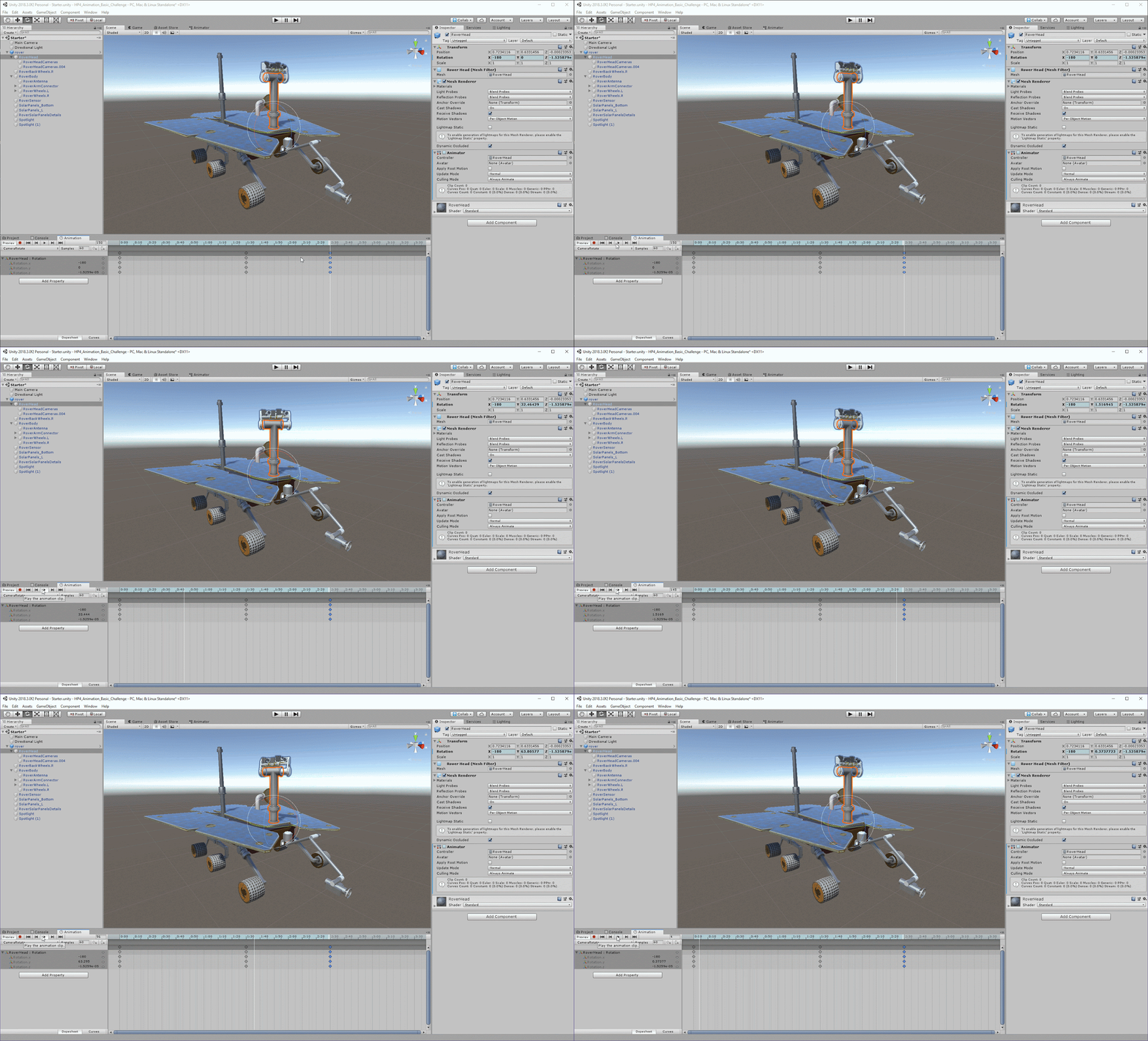

Tip — View Your Animation Frame by Frame
Instead of hitting play, scrub back and forth in your Dopesheet to control your animation preview.
5. Key Takeaways
Great job adding your first animations to different GameObjects! You should now be familiar with how to create a simple rotation animation using the Animation window along with its various features, such as the:
- Animation Properties List
- Dopesheet
- Keyframes
- Animation Timeline