
Exporting Meshes from PiXYZ Studio
Tutorial
Beginner
+10XP
20 mins
(10)
Unity Technologies
Exporting Meshes from PiXYZ Studio is a straightforward and easy process. With the model having been properly reduced in triangle count size and optimized for real-time use, such as importing into Unity or Virtual or Augmented Reality, it can now be exported into one of many supported formats. In this tutorial you will learn how to export meshes from PiXYZ Studio.
Languages available:
1. Exporting Meshes from PiXYZ Studio
This tutorial has been verified using Unity 2019 LTS and PiXYZ 2020.1.1.8
Exporting Meshes from PiXYZ Studio is a straightforward and easy process. With your model’s triangle-count size properly reduced and optimized for real-time use — such as Unity or Virtual or Augmented Reality — it can be exported via one of many supported formats.
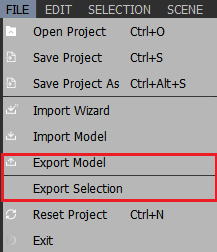
There are two primary ways to export a model from PiXYZ Studio: either from File, the Menu Bar, (Figure 01), or the Export button from the Toolbar. (Figure 02)
Clicking Export will open the PiXYZ Export window. Here you will be able to choose the export format, the export location, and the file name. (Figure 03)
The supported export formats are: fbx, 3dxml, obj, gltf, glb, usdz, usda, usdc, prc, and pdf. If you leave Save as Type as All PiXYZ files, it will save the model as an .fbx file.
Once you’ve selected the export location, name, and format, click the Save button and PiXYZ will export the model.
2. Conclusion
PiXYZ Studio makes it easy to export your models in a wide range of formats supported by many 3D applications. It’s a versatile application to prepare any of your CAD models for real-time use.