
Challenge 4: Configure external animations
Tutorial
Beginner
+0XP
15 mins
Unity Technologies
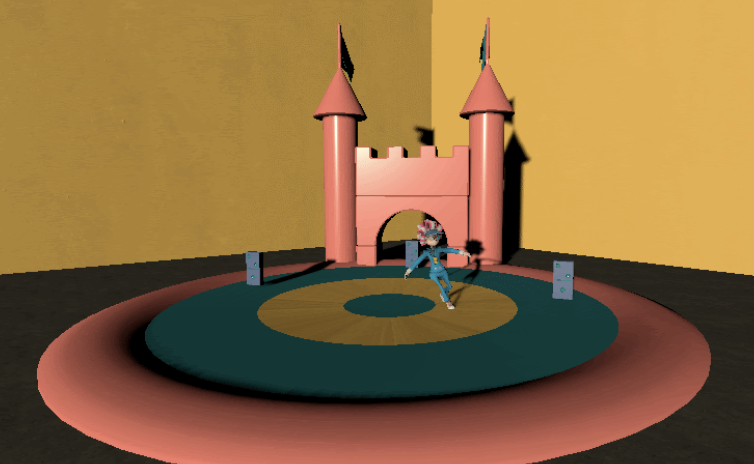
in this challenge, you will setup an .fbx model that was created externally
1. Setup the .fbx model and leverage the existing animations to create a dancing sequence
1. Now that we have a few DominoBlocks configured in the scene, create a star of the show by adding the Granny GameObject to the scene and placing the GameObject at the center of the circle.
2. With the SportGranny GameObject selected, add an Animator Component
3. Create a new Animator Controller called “SportGranny”.
4. Set the Controller reference on the SportGranny GameObject. The Sport_Granny GameObject was generated from Mixamo and was imported with a series of dance animations.
5. With the Animation Controller open in the scene, drag the “breakdance uprock” animation clip into the Animator window.
6. Press Play in the scene to see the Granny animation in action.
7. To add a transition open the Animator window and add the following animation clips with the following transitions: flair (1), flair (2), flair (3)
8. Create a new trigger parameter called “TriggerFlair”
and add it to the transition condition.
9. Add the Animation State Changer component to the Granny and add the Animator reference as well as the Trigger Name.
10. Enable the Audio Source GameObject in the scene and press Play to see the scene in action.
11. You can use the keypress to control the animations in the scene.