
Using 9-Slicing for Scalable Sprites
Tutorial
Beginner
+10XP
15m
(6)
Unity Technologies
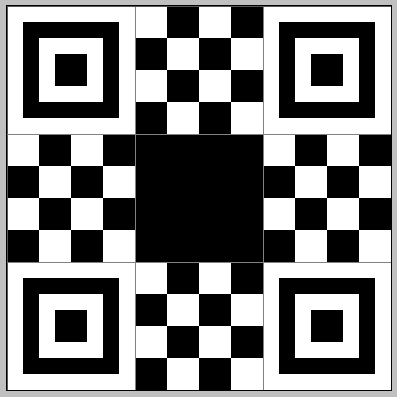
9-slicing is a 2D technique which allows you to reuse an image at various sizes without needing to prepare multiple assets. It’s often useful to be able to dynamically resize graphic elements in a game or application. In this tutorial, you will learn to create and use the 9-Slicing technique.
1. Using 9-Slicing for Scalable Sprites
If you are using Unity 2019.2, click here. If you are using Unity 2019.3 or above, click here.
It’s often useful to be able to dynamically resize graphic elements in a game or application. Dialog boxes, portraits, and other informational displays often use the same frame, despite being different sizes. Rather than creating duplicate art at various sizes, Unity can dynamically stretch and tile designated parts of a Sprite to allow one Sprite to serve as the border (and, optionally, the background) for UI elements of many sizes. Games like Arkanoid and Pong use paddles to defend the goal from balls. Depending on difficulty level, and through the use of power-ups, the designer may want to change the size of the paddle during play. A 9-sliced Sprite can scale as necessary to accommodate changes in real time.
The designation of borders in the Sprite Editor is known as “9-slicing.” Because the edges overlap and create corners, the remaining center of the Sprite makes for a total of nine pieces into which the Sprite is sliced. The centers of the bottom, top, left, and right borders, and the center of the sprite if Fill Center is enabled, are stretched (in Sliced mode) or tiled (in Tiled), while the corners are used at their original size.
For the first part of this workflow, we’ll create a panel to demonstrate how to 9-slice a Sprite, and Sliced vs. Tiled modes. Then we’ll build a simple paddle as one might use in a game like Arkanoid, where you move the mouse to move the paddle horizontally, and use the scroll wheel to adjust the paddle size.
2. Exercise 1: 9-Slicing a Sprite
- Using your art tool of choice, create a Sprite to represent your panel border and background. See below for an example. (Figure 01)
- Drop the Sprite into your project, highlight it in the Project window, and set its Mesh Type to Full Rect (Figure 02).
- Click Apply at the bottom of the Inspector, and click to open the Sprite Editor (Figure 03).
- Either drag the green lines at the edges of the Sprite inward, or set the Border fields, to mark the top, bottom, left, and right borders (Figure 04).
- Click Apply at the top of the Sprite Editor window and close the Sprite Editor.
- From the GameObject dropdown, select UI > Panel.
- In the panel’s Inspector section Image (Script), set the Source Image to your Sprite. By default, the panel image is partially transparent (Figure 05).
- Adjust the image color and transparency, if desired.
- By changing the values in the panel’s Rect Transform for the offsets and size, or manipulating the edges and size directly with the Rect Tool, notice how the 9-sliced edges and center are stretched to fill the panel with one instance of the source image.
- In the panel’s Inspector section Image (Script), set Image Type to Tiled.
- Adjust the canvas settings to your preference.
- Sprite import settings as well as the Canvas’ UI Scale Mode settings — dictated by project needs — directly affect the appearance of 9-sliced Sprites. Here, the panel was set to 640x360 pixels, and the Canvas Scaler was set to scale with screen size to match a reference resolution of 640x360, using the Sprite’s pixels per unit setting (Figure 06).
3. Exercise 2: Dynamically resizing an Arkanoid/Breakout paddle
- Delete or hide the panel from Exercise 1.
- Create an empty GameObject and name it DynamicPaddle.
- Create a new C# script called Paddle, and attach it to DynamicPaddle. Double-click Paddle in the Project window to open it in your selected script editor.
- Beginning on line 6, type:
	float minSize = 5;
	float maxSize = 10;
	float resizeSpeed = 3;
	float positionY;
	SpriteRenderer sprite;
- In Start ( ), beginning on line 14, type:
Cursor.visible = false;
sprite = GetComponent<SpriteRenderer>();
sprite.size = new Vector2(7.5f, sprite.size.y);
positionY = -Camera.main.orthographicSize + sprite.size.y * 0.5f;- In Update ( ), beginning on line 22, type:
float sizeX = sprite.size.x;
sizeX += Input.GetAxisRaw("Mouse ScrollWheel") * resizeSpeed;
sizeX = Mathf.Clamp(sizeX, minSize, maxSize);
sprite.size = new Vector2(sizeX, sprite.size.y);
Vector3 mousePosition = Camera.main.ScreenToWorldPoint(Input.mousePosition);
transform.position = new Vector3(mousePosition.x, positionY);
- Paddle is now complete. Save changes and return to the Unity Editor.
- Highlight DynamicPaddle and add a Sprite Renderer component.
- Set the Sprite to your 9-sliced Sprite from Exercise 1. Set the Draw Mode to Tiled, and set the Width to 7.5 (Figure 07).
- Press Play to enter Play mode and scroll the mouse wheel to change the size of the paddle. Press Escape when you’re done to make the mouse cursor visible again before exiting Play mode (Figure 08).
- Optionally, change the Draw Mode to Sliced and try the demo again.
These are just two of the ways 9-slicing can be used for one piece of artwork appear various sizes across potentially many Sprite-based elements.