
Challenge — Optimizing with Light Baking and Reflections
Tutorial
Beginner
+10XP
Unity Technologies
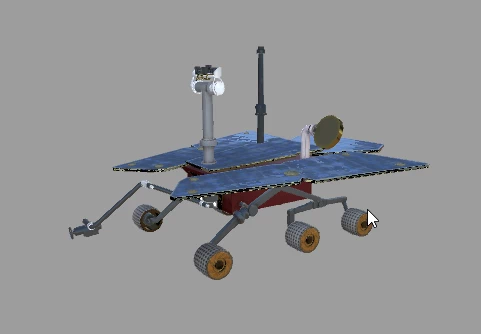
This challenge covers a few common techniques to improve the realism of your Unity Scene while keeping performance in mind. You will practice a couple of the key lighting techniques discussed in the previous tutorial, namely Reflection Probes and light baking to improve the visual fidelity.
1. Overview
This challenge reviews a few common techniques to improve the realism of your Unity Scene while keeping performance in mind. You will practice a couple of the key lighting techniques, namely Reflection probes and light baking, to improve the visual fidelity of the Scene.
When working with the HoloLens, proper lighting can help emphasize an object's depth and placement in the Scene. However, lighting can also reduce the headset’s performance (due to computationally expensive calculations). By incorporating light baking, you can increase the lighting quality without diminishing performance. This is especially important on the HoloLens due to its hardware constraints.
Before:
After:
In this challenge, you will add a Reflection Probe and prepare the Scene for light baking. In order to complete this challenge, you will:
- Add a Reflection Probe to the Scene
- Change the lights from realtime to baked
- Make the Rover static
2. Add a Reflection Probe
Add a Reflection Probe to the Scene and position it inside the Rover. Change the light type to Baked to increase the accuracy of the Rover’s reflections and optimize the Scene’s performance.
- Create a Reflection Probe (Create > Lighting > Reflection Probe )
- Position it inside the Rover.
- In the Inspector, increase the resolution to improve the reflection quality.
--------------------
Tip — Positioning the Reflection Probe
You can quickly place an object at the center of another object by making it a child of the object, making its position (0,0,0), and then unparenting the object.
3. Change the Lights from Realtime to Baked
Change the lights in the Scene from Realtime to Baked to allow Unity to pre-generate the lighting data.
- Locate the lights in the Unity Scene.
- In each of the light’s Inspectors, change the Light Mode from Realtime to Baked.
--------------------
Tip — Multi-Select
Hold Shift or Ctrl (Windows)/Command (Mac) to select multiple objects in the Hierarchy. With multiple objects selected, you can change any components they have in common at the same time.
4. Make the Rover Static
To allow the pre-generated baked light to affect the Rover, change the Rover and its child GameObjects to Static.
- Select the Rover GameObject from the Hierarchy.
- In the Inspector, check the Static box to make the Rover and its children Static.
- When asked if you would like to apply changes to the children, select Yes.
5. Key Takeaways
You've now added a Reflection Probe and optimized the Scene lighting.
By completing this module, you’re now able to:
- Add and configure a Reflection Probe
- Bake any Unity lights in your Scene