
Lesson 2.2 - Food Flight
Tutorial
Beginner
+10XP
1h 10m
(4007)
Unity Technologies
Overview:
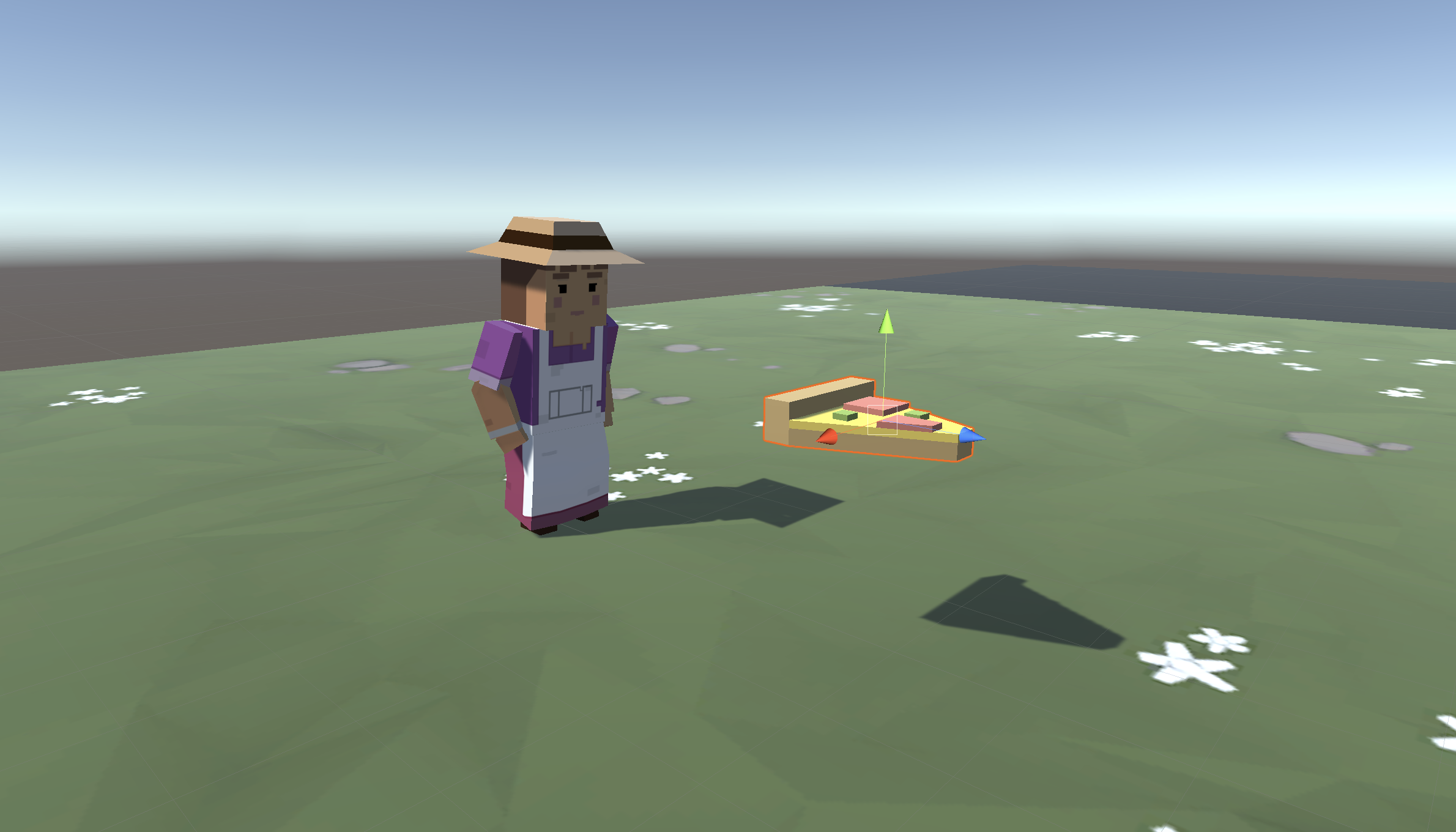
In this lesson, you will allow the player to launch the projectile through the scene. First you will write a new script to send the projectile forwards. Next you will store the projectile along with all of its scripts and properties using an important new concept in Unity called Prefabs. The player will be able to launch the projectile prefab with a tap of the spacebar. Finally, you will add boundaries to the scene, removing any objects that leave the screen.
Project Outcome:
The player will be able to press the Spacebar and launch a projectile prefab into the scene, which destroys itself when it leaves the game’s boundaries. The animals will also be removed from the scene when they leave the game boundaries.
Overview Video
1. Make the projectile fly forwards
The first thing we must do is give the projectile some forward movement so it can zip across the scene when it’s launched by the player.
- Create a new “MoveForward” script, attach it to the food object, then open it
- Declare a new public float speed variable;
- In Update(), add transform.Translate(Vector3.forward * Time.deltaTime * speed);, then save
- In the Inspector, set the projectile’s speed variable, then test
2. Make the projectile into a prefab
Now that our projectile has the behavior we want, we need to make it into a prefab it so it can be reused anywhere and anytime, with all its behaviors included.
- Create a new “Prefabs” folder, drag your food into it, and choose Original Prefab
- In PlayerController.cs, declare a new public GameObject projectilePrefab; variable
- Select the Player in the hierarchy, then drag the object from your Prefabs folder onto the new Projectile Prefab box in the inspector
- Try dragging the projectile into the scene at runtime to make sure they fly
3. Set up a new fireAction variable
Now let’s add a Fire Action that you can bind to the Spacebar in the Inspector window.
- In PlayerController.cs, add public InputAction fireAction; and enable it in the Start method using fireAction.Enable();
- In the Inspector window, set up the binding for the Spacebar:
- Expand “Fire Action”.
- Select + Add Binding.
- Set Path to keyboard/space (or select Listen and press the Spacebar)
4. Detect if the fire action occurs
Now let’s detect the Fire Action each frame and prepare to spawn a projectile when it’s triggered.
- In PlayerController.cs, check the fireAction.triggered inside the Update function.
- Enter Play mode and press the Spacebar (or your bound key). The block runs on the frame where the action is performed.
5. Launch projectile on spacebar press
We’ve created the code that tests if the player presses spacebar, but now we actually need spawn a projectile when that happens
- Inside the if-statement, use the Instantiate method to spawn a projectile at the player’s location with the prefab’s rotation
6. Make animals into prefabs
The projectile is now a prefab, but what about the animals? They need to be prefabs too, so they can be instantiated during the game.
- Rotate all animals on the Y axis by 180 degrees to face down
- Select all three animals in the hierarchy and Add Component > Move Forward
- Edit their speed values and test to see how it looks
- Drag all three animals into the Prefabs folder, choosing “Original Prefab”
- Test by dragging prefabs into scene view during gameplay
7. Destroy projectiles offscreen
Whenever we spawn a projectile, it drifts past the play area into eternity. In order to improve game performance, we need to destroy them when they go out of bounds.
- Create “DestroyOutOfBounds” script and apply it to the projectile
- Add a new private float topBound variable and initialize it = 30;
- Write code to destroy if out of top bounds if (transform.position.z > topBound) {
Destroy(gameObject); } - In the Inspector Overrides drop-down, click Apply all to apply it to prefab
8. Destroy animals offscreen
If we destroy projectiles that go out of bounds, we should probably do the same for animals. We don’t want critters getting lost in the endless abyss of Unity Editor...
- Create else-if statement to check if objects are beneath lowerBound:
else if (transform.position.z < lowerBound) - Apply the script to all of the animals, then Override the prefabs
9. Lesson Recap
New Functionality
- The player can press the Spacebar to launch a projectile prefab,
- Projectile and Animals are removed from the scene if they leave the screen
New Concepts & Skills
- Create Prefabs
- Override Prefabs
- Test for Key presses
- Instantiate objects
- Destroy objects
- Else-if statements
Next Lesson
- Instead of dropping all these animal prefabs onto the scene, we’ll create a herd of animals roaming the plain!
Check your scripts
PlayerController.cs
using UnityEngine;
using UnityEngine.InputSystem;

public class PlayerController : MonoBehaviour
{
    public InputAction moveAction;
    public Vector2 moveInput;
    public float speed = 10.0f;
    public float xRange = 10.0f;
    public GameObject projectilePrefab;
    public InputAction fireAction;

    void Start()
    {
        moveAction.Enable();
        fireAction.Enable();
    }

    void Update()
    {
        // Keep the player in bounds
        if (transform.position.x < -xRange)
        {
            transform.position = new Vector3(-xRange, transform.position.y, transform.position.z);
        }
        if (transform.position.x > xRange)
        {
            transform.position = new Vector3(xRange, transform.position.y, transform.position.z);
        }

        moveInput = moveAction.ReadValue<Vector2>();
        transform.Translate(Vector3.right * moveInput.x * Time.deltaTime * speed);

        if (fireAction.triggered)
        {
            Instantiate(projectilePrefab, transform.position, projectilePrefab.transform.rotation);
        }
    }
}
MoveForward.cs
using UnityEngine;

public class MoveForward : MonoBehaviour
{
    public float speed = 40.0f;

    void Start()
    {

    }

    void Update()
    {
        transform.Translate(Vector3.forward * Time.deltaTime * speed);
    }
}
DestroyOutOfBounds.cs
using UnityEngine;

public class DestroyOutOfBounds : MonoBehaviour
{
    private float topBound = 30;
    private float lowerBound = -10;

    void Start()
    {

    }

    void Update()
    {
        if (transform.position.z > topBound)
        {
            Destroy(gameObject);
        }
        else if (transform.position.z < lowerBound)
        {
            Destroy(gameObject);
        }
    }
}