
Lesson 6.3 - Apply Post-Processing Effects to the Scene
Tutorial
Beginner
+10XP
45m
(161)
Unity Technologies
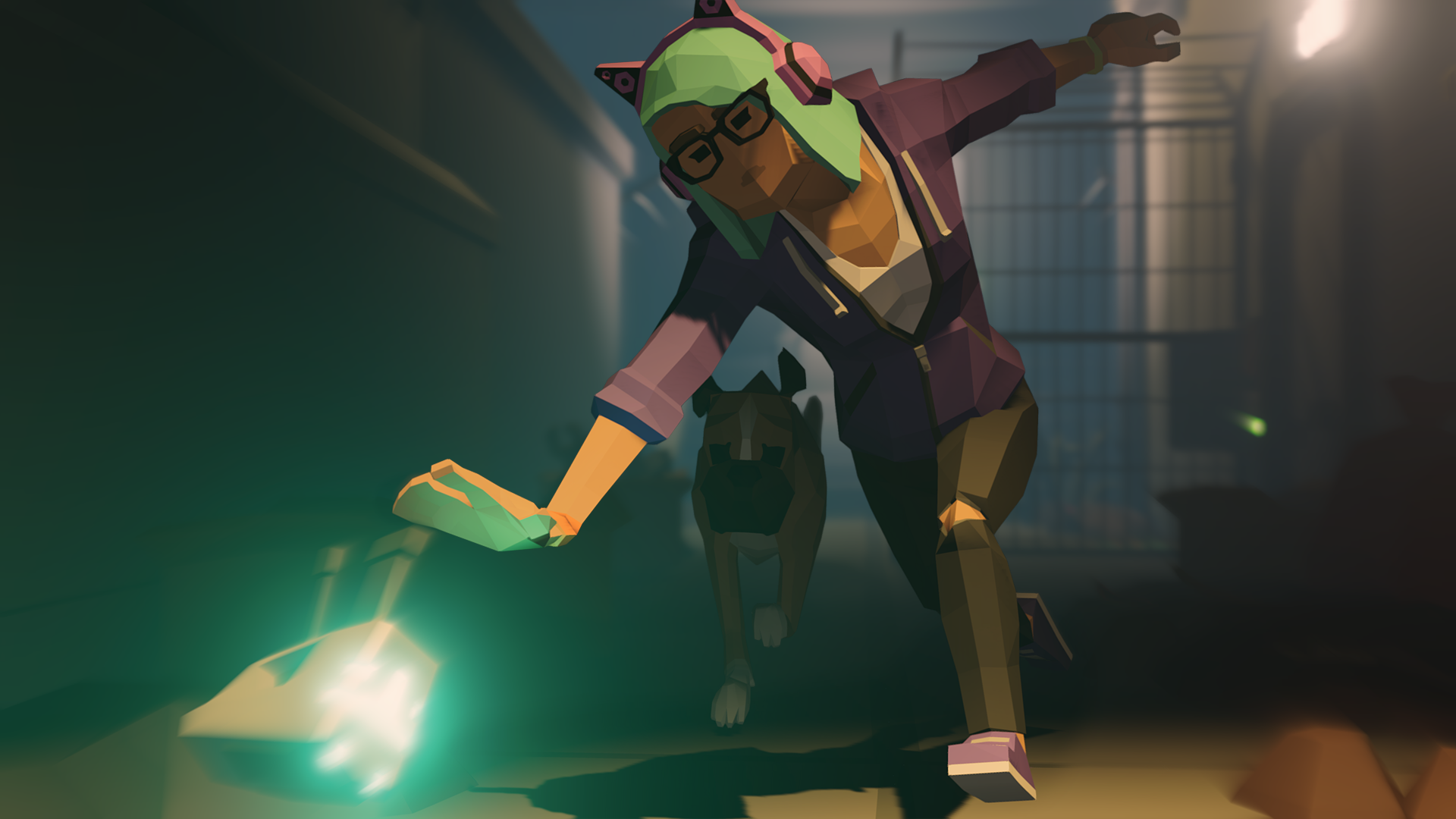
If you want your story to have cinematic visual quality, post processing is for you. In this unit, you’ll learn how to ensure your project is set up for adding post-processing effects to your Scene. Then we’ll show you how to add Bloom, Tone-Mapping, Color Grading, and Motion Blur.
1. Lesson Overview
2. Setting up the Project for Post Processing
Structuring the Project Settings for use with post processing will require a few steps to get set up.
1. Locate the UniversalRenderPipelineAsset by typing it into the search field in the Project window.
2. Select the UniversalRenderPipelineAsset to view its properties in the Inspector. (Make sure this is the correct Asset and not the file directly below labelled “UniversalRenderPipelineAsset_Renderer”). The Quality and Post-processing settings are shown. Ensure that the checkbox selection to enable a global High Dynamic Range (HDR) in the Quality settings remains checked. Leave the Grading Mode field as Low Dynamic Range in the Post-processing settings (Figure 01).
For our project’s purposes, we will keep these settings the same, as they’re already structured for this unit’s starting Scene. However, it’s important to understand what the Quality and Post-processing settings do, depending on your performance needs. For instance, if you are running Unity on a lower-end device, you may need to uncheck the HDR Mode, as this setting could impact performance. As for the Grading Mode setting, you can switch from Low Dynamic Range to High Dynamic Range only if you really need the precision of a cinematic grading workflow, otherwise no changes are necessary.
3. Select the Main Camera in the Hierarchy window to view its properties in the Inspector. Enable Post Processing in the Rendering settings by selecting the checkbox. Additionally, change the Anti-aliasing drop-down to Fast Approximate Anti-aliasing (FXAA) to improve graphical quality (Figure 02).
4. We’ll now add Post Processing settings to the Scene using the Volume framework system. From the top menu drop-down, select GameObject > Create Empty, rename it ScenePostProcessing, and set the Position’s X, Y, and Z values to 0 (Figure 03).
5. Select Add Component and search for and enable the Volume component. In the Profile settings, select New to create a new Profile (Figure 04).
3. Applying a Post Processing Effect: Bloom
Bloom makes lights expand into surrounding objects. In order to apply the Bloom effect, you’ll need to be looking at an area of the Scene with light sources turned on. It will be helpful to keep the Scene, Game, and Timeline windows visible. Zoom in to an area of your Scene, such as the alley, so you can preview how Bloom changes the lighting.
1. With the ScenePostProcessing GameObject selected in the Hierarchy window, select the Lock button in the upper-right corner of the Inspector to keep the GameObject’s properties visible (Figure 05).
2. Next, select the Master Timeline in the Hierarchy window and position the frame playhead cursor along the Timeline to show the Game window’s camera view. Here, the frame playhead is set to Frame 68 to show the establishing shot in the Game window (Figure 06).
3. We’re now ready to add an override to the ScenePostProcessing Volume, which is still visible and locked to the Inspector window. Select Add Override and then select Post-processing > Bloom (Figure 07).
4. Enable the Bloom’s Threshold, Intensity, and Scatter properties by checking their checkboxes. Since the lighting calculation’s Threshold and Intensity can go beyond a value of 1, we can make a subtle increase. Set Threshold to 1.25. Set Intensity to 1.25, and set Scatter to .85. Scatter in this context refers to the radius of the Bloom effect in the range of 0 to 1.
Now you’ll be able to see a dramatic increase in the neon sign’s brightness and glow, which gives the Scene a luminous quality. Toggle the Bloom checkbox on and off to preview the difference (Figure 08).
4. Adding Tone-Mapping
Tonemapping is a post-processing effect that involves remapping a video’s image values to a new range of values. Tonemapped HDR lighting in Unity helps to target a monitor’s or television’s specific range and prevent image clipping.
1. With the ScenePostProcessing GameObject still locked in the Inspector, select Add Override and then select Post-processing > Tonemapping. Check the Mode checkbox, then in the Mode field, select ACES (Figure 09).
The Tonemapping algorithm options are Neutral and ACES. Use the Neutral if you want an HDR effect with minimal impact on color hue or saturation. Use the ACES for a more cinematic look. ACES Mode will appear more contrasted than Neutral Mode, and will affect the color hue and saturation.
5. Adding Color Grading
Color Grading is a process of adjusting or balancing specific ranges in hue, saturation, or luminosity. You can adjust color curves with a range of combinations to achieve post-processing effects, such as specific hue replacements, shadow / highlight luminosity, or targeted color saturation. In the next few steps, we’ll walk you through Color Grading your Scene.
You’ll begin with the Shadows Midtones Highlights post-processing effect that separately controls the values for shadows, midtones, and highlights. This effect is used to precisely define the tonal ranges for each value range.
1. With the ScenePostProcessing GameObject still locked in the Inspector, select Add Override and then select Post-processing > Shadows, Midtones, Highlights (Figure 10).
2. Select the individual checkboxes to enable Shadows, Midtones, and Highlights. Adjust the sliders to the right or left to increase or decrease the brightness in each value range (Figure 11). For instance, we’ve made the aesthetic choice to bring out more shadow detail and brighten just the shadow range by dramatically increasing the Shadow slider. We’ve also just barely brightened the Midtone and Highlight ranges by subtly adjusting those values.
Next, you’ll apply the Color Adjustment Volume Override. With this override, you can modify and adjust the overall exposure, contrast, hue, and saturation of the Scene.
3. With the ScenePostProcessing GameObject still locked in the Inspector, select Add Override and then select Post-processing > Color Adjustments (Figure 12).
4. Enable the checkboxes for Post Exposure and Color Filter. Post Exposure adjusts the overall exposure in the Scene. As an aesthetic choice, we’ve slightly increased the exposure by setting the Post Exposure value to 1.25. This will slightly increase brightness. We’ve also set the Color Filter to a light pink. Select the Color Filter field labelled HDR and then select the light-pink color from the HDR Color popup window (Figure 13).
Next, we’ll adjust Lift Gamma Gain. With this setting, the sliders control the dark tones, resulting in a more exaggerated effect on shadows. When adjusting Gamma, the mid-range tones change depending on the hue or lightness of the midtones. Gain is used to increase overall brightness, as well as brighten highlights.
5. With the ScenePostProcessing GameObject still locked in the Inspector, select Add Override and then select Post-processing > Lift, Gamma, Gain (Figure 14).
6. Select the individual checkboxes to enable Gamma and Gain. Set Gamma to a value of 1.25. Set Gain to a value of 1.30 (Figure 15).
Lastly, you’ll adjust the White Balance. This setting can modify the Scene’s color temperature, where the color’s hue can look colder (blue), or warmer (red) for the video’s final render.
7. With the ScenePostProcessing GameObject still locked in the Inspector, select Add Override and then select Post-processing > White Balance (Figure 16).
8. Select the checkbox to enable Temperature. Color temperature generally means that a lower “cooler” value enhances blues while a higher “warmer” value amplifies reds.
9. As an aesthetic choice, we’ve increased our Scene’s color temperature to 10, which enhances red hues. Experiment with this setting to tailor it to your taste (Figure 17).
Let’s now compare our original Scene with adjustments to Tone-Mapping, Exposure, and Color Grading (Figure 18). Practice adjusting your own Post-processing values to suit your design choices. Your colors may be similar to the changes shown in the example.
6. Adding Motion Blur
Motion Blur is another post-processing effect. It simulates the blur that occurs in an image when a camera records fast-moving objects using a slower shutter speed. This may happen when a camera’s exposure is set to capture more light by opening the shutter for a longer duration. It can also occur if a camera is panning quickly, or if the subject is travelling at a high speed. Next, you’ll add a little motion blur to your scene to make it more filmic looking.
11. With the ScenePostProcessing GameObject selected in the Hierarchy, select Add Override and then select Post-processing > Motion Blur. Enable the checkboxes for Quality and Intensity (Figure 19).
12. Change the Quality to High. Increase the Intensity to 0.2 (Figure 20).
7. Recap
Post-processing effects are as versatile and configurable as your creative vision, and give you nuanced control of your cinematic style. When working with a Scene’s Volume in the Universal Render Pipeline, you can employ a range of post-processing Volume Overrides to make vivid and compelling enhancements.