Launch Your Games Career: Industry Access For UK Unity Creators
Realitjam’s Unity-Focussed UK Apprenticeship Program Is Here. UK Residents apply now

Lesson 2.3 - Random Animal Stampede
Tutorial
Beginner
+10XP
1h
(3342)
Unity Technologies
Overview:
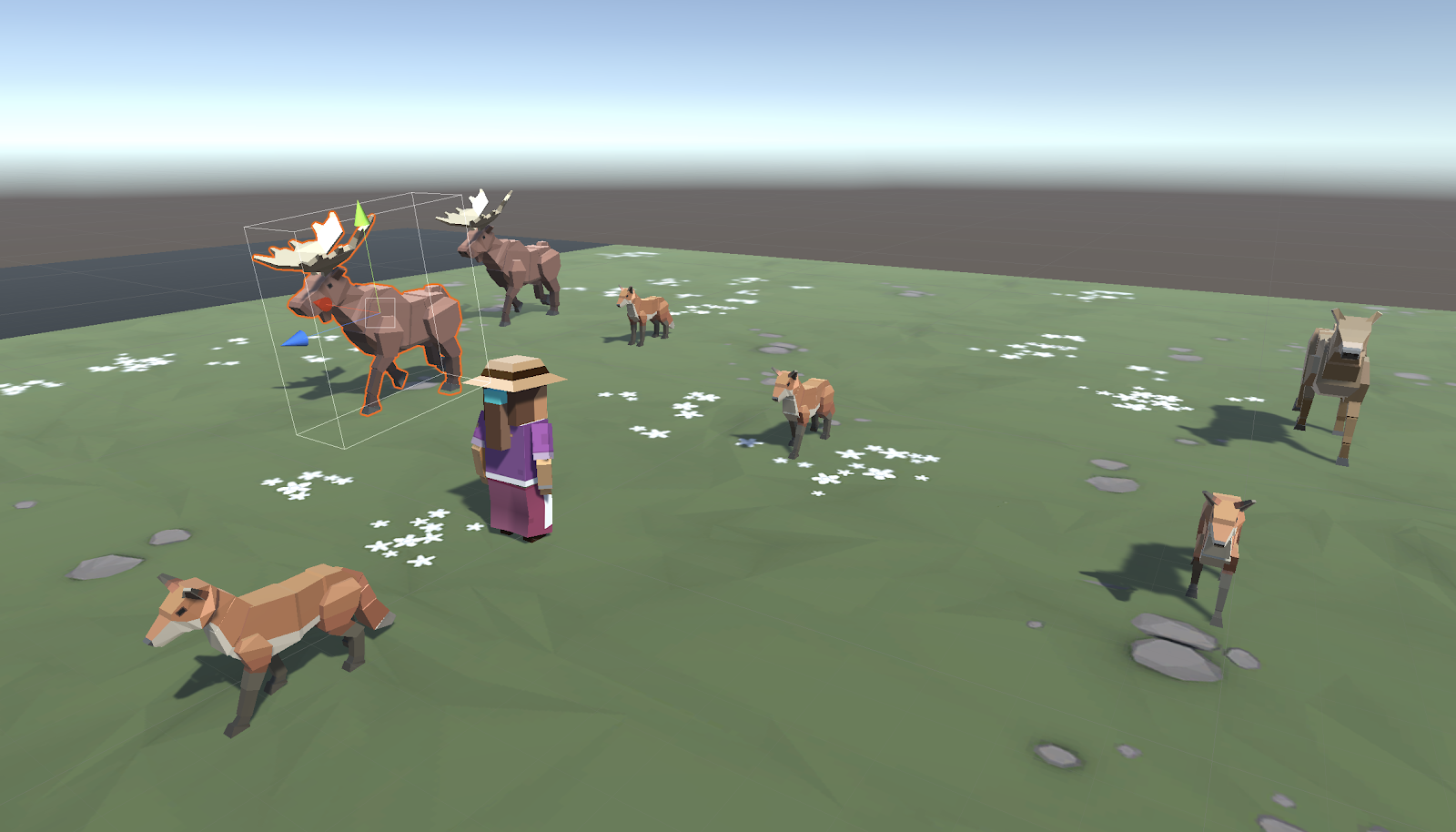
Our animal prefabs walk across the screen and get destroyed out of bounds, but they don’t actually appear in the game unless we drag them in! In this lesson we will allow the animals to spawn on their own, in a random location at the top of the screen. In order to do so, we will create a new object and a new script to manage the entire spawning process.
Project Outcome:
When the user presses the S key, a randomly selected animal will spawn at a random position at the top of the screen, walking towards the player.
Overview Video
1. Create a spawn manager
If we are going to be doing all of this complex spawning of objects, we should have a dedicated script to manage the process, as well as an object to attach it to.
- In the Hierarchy, create an Empty object called “SpawnManager”
- Create a new script called “SpawnManager”, attach it to the Spawn Manager, and open it
- Declare new public GameObject[ ] animalPrefabs;
- In the Inspector, change the Array size to match your animal count, then assign your animals by dragging them from the Project window into the empty slots
Note: Make sure you drag them from the Project window; not the Hierarchy! If you're going to spawn objects, you need to make sure you're using Prefabs, which are stored in the Project window.
2. Configure a temporary spawn input action
Now let’s add a Spawn Action to SpawnManager and bind it to the S key in the Inspector.
- In SpawnManager.cs, add the Input System namespace, the action field, then enable it in the Start function.
- In the Inspector window for your SpawnManager:
- Find Spawn Action.
- Select + Add Binding.
- Set Path to keyboard/s (you can type to search or select Listen and press S).
3. Spawn an animal if S is pressed
We’ve created an array and assigned our animals to it, but that doesn’t do much good until we have a way to spawn them during the game. Let’s create a temporary solution for choosing and spawning the animals.
- In the Update() function, write an if-then statement to instantiate a new animal prefab at the top of the screen if the spawnAction is triggered.
- Declare a new public int animalIndex and incorporate it in the Instantiate call, then test editing the value in the Inspector window.
4. Spawn random animals from array
We can spawn animals by pressing S, but doing so only spawns an animal at the array index we specify. We need to randomize the selection so that S can spawn a random animal based on the index, without our specification.
- In the if-statement checking if S is pressed, generate a random int animalIndex between 0 and the length of the array
- Remove the global animalIndex variable, since it is only needed locally in the if-statement
5. Randomize the spawn location
We can press S to spawn random animals from animalIndex, but they all pop up in the same place! We need to randomize their spawn position, so they don’t march down the screen in a straight line.
- Replace the X value for the Vector3 with Random.Range(-20, 20), then test
- Within the if-statement, make a new local Vector3 spawnPos variable
- At the top of the class, create private float variables for spawnRangeX and spawnPosZ
6. Change the perspective of the camera
Our Spawn Manager is coming along nicely, so let’s take a break and mess with the camera.Changing the camera’s perspective might offer a more appropriate view for this top-down game.
- Toggle between Perspective and Isometric view in Scene view to appreciate the difference
- Select the camera and change the Projection from “Perspective” to “Orthographic”
7. Lesson Recap
New Functionality
- The player can press the S to spawn an animal
- Animal selection and spawn location are randomized
- Camera projection (perspective/orthographic) selected
New Concepts & Skills
- Spawn Manager
- Arrays
- Keycodes
- Random generation
- Local vs Global variables
- Perspective vs Isometric projections
Next Lesson
- Using collisions to feed our animals!
Check your scripts
SpawnManager.cs
using UnityEngine;
using UnityEngine.InputSystem;

public class SpawnManager : MonoBehaviour
{
    public GameObject[] animalPrefabs;
    public InputAction spawnAction;

    private float spawnRangeX = 20;
    private float spawnPosZ = 20;

    void Start()
    {
        spawnAction.Enable();
    }

    void Update()
    {
        if (spawnAction.triggered)
        {
            // Randomly generate animal index and spawn position
            Vector3 spawnPos = new Vector3(Random.Range(-spawnRangeX, spawnRangeX),
            0, spawnPosZ);
            int animalIndex = Random.Range(0, animalPrefabs.Length);
            Instantiate(animalPrefabs[animalIndex], spawnPos,
            animalPrefabs[animalIndex].transform.rotation);
        }
    }
}