
Baking Texture Maps in 3dsMax for Unity
Tutorial
intermediate
+10XP
30m
(14)
Unity Technologies
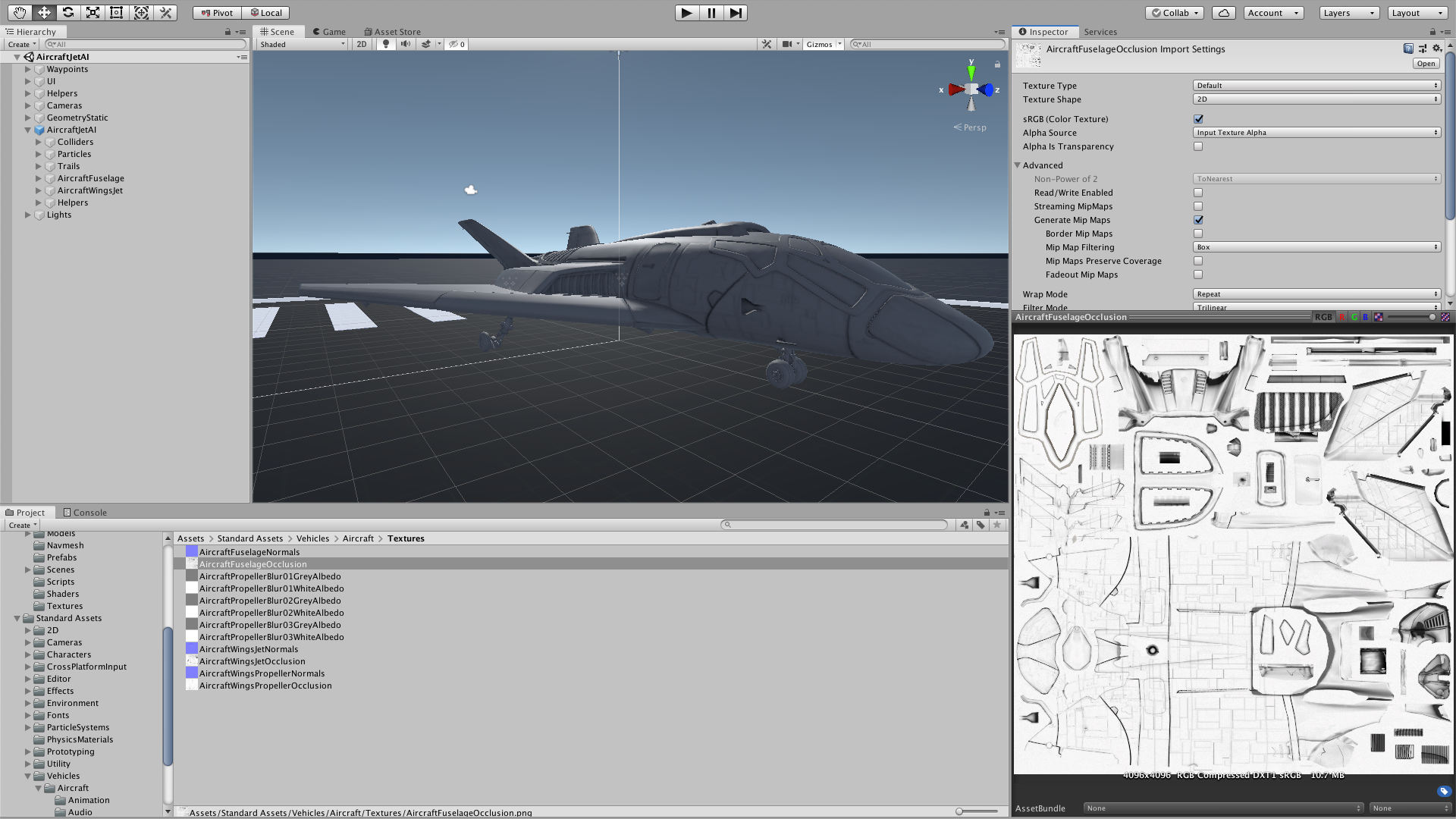
You can bring a lot of detail to your GameObjects by using precomputed textures to provide normal mapping and ambient occlusion. These maps help make a scene more realistic. With 3dsMax, the process of creating normal and Ambient Occlusion (AO) maps is quite straightforward.
Languages available:
1. Introduction
This tutorial has been verified using Unity 2019 LTS and 3DsMax 2020
You can bring a lot of detail to your GameObjects by using precomputed textures to provide normal mapping and ambient occlusion. These maps help make a scene more realistic. With 3dsMax, the process of creating normal and Ambient Occlusion (AO) maps is quite straightforward.
Before we begin, create a new scene in your 3dsMax project and add the object for which you’ll be creating AO and normal maps. This object will already have Level of Detail (LOD) created.
2. Baking the Normal Map
To bake the normal map:
1. Once you have High Poly and Low Poly models in the scene, select the Low Poly model.
2. Choose Rendering > Render to Texture. This opens the Render to Texture window. (Figure 01)
3. On the Objects to Bake rollout, under Projection Mapping, click Pick. (Figure 02)
4. Choose the High Poly model and click Add. (Figure 03)
5. Under Projection Mapping, click Enabled.
6. On the Output rollout, add a NormalsMap element and assign Bump as the Target Map Slot. Once it’s added, you can change the name and image size. (Figure 05)
7. In the Selected Elements Unique Settings group, turn on Output into Normal Bump. (Figure 06)
8. Finally, click Render at the bottom of the window.
Clicking the Render button will open a new window where you can watch the rendering process. When it’s complete, you can save the render from this window. 3dsMax also automatically saves the render in the pre-designated folder you specified earlier.
3. Baking the Ambient Occlusion (AO) Map
To bake the AO Map, begin with a new scene that includes the object you want to use. This workflow again uses the teapot model with the LOD already set up.
1. First, make sure you have the latest Arnold Renderer by downloading and installing it from Arnold Renderer. This will make the AO Map creation efficient, quick, and high-quality
2. Once the install is finished, set up the renderer. Open Render Setup by pressing F10 and set the Renderer to Arnold. (Figure 07)
3. Select the object you wish to bake.
4. Choose Rendering > Render to Texture to open the Render to Texture window.
5. On the Output rollout, add an Ambient Occlusion element and assign Diffuse Color as the Target Map Slot. Once it’s added, you can change the name and image size.
6. If needed, you can adjust the number of samples for the Ambient Occlusion render. More samples means higher quality but a longer render time.
7. Finally, click Render at the bottom of the window.
Clicking Render will open a new window where you can watch the rendering process. When it’s complete, you’ll be able to save the render by clicking the floppy disc icon in the top left of the window. This will also save a copy of the render in the file path you provide at the top of the window.
4. Conclusion
Baking is one way to generate normal and AO texture maps to add polish and detail to objects within a scene.