
Week 4 | Session 5 - Player Control - April 17, 2020
Exercise
Beginner
+20XP
1h
Unity Technologies
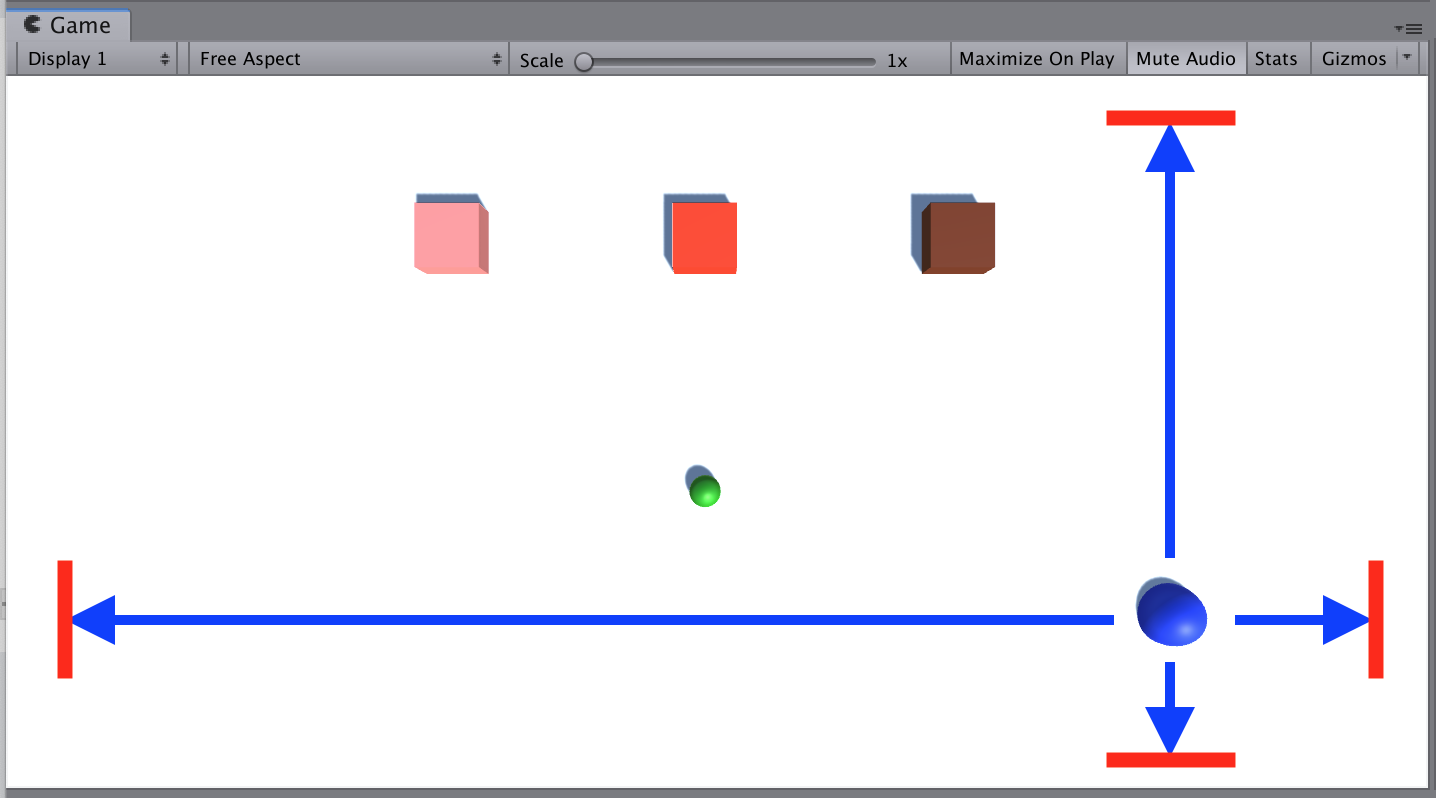
In this live session, you will program the player’s basic movement, including the code that limits that movement. Since there are a lot of different ways a player can move, depending on the type of project you’re working on, you will not be given step-by-step instructions on how to do it. In order to do this, you will need to do research, reference other code, and problem-solve when things go wrong.
Languages available:
1. Overview
This is the same content covered in Lab 3 in the independent Create with Code Course.
What you will make:
- All key objects are in the scene as primitive objects with the camera positioned properly for your project type.
What you will learn:
- Create a simple plane as a background for your project
- Position the camera, background, and player appropriately depending on the type of project you are creating
- Create primitive shapes to serve as placeholders for your GameObjects
- Create new colored materials and apply them to distinguish GameObjects
2. Before you Begin
To participate in this session and follow along, you need:
- Unity 2018.4 installed
If this is your first Create with Code live learning session, you can catch up by:
- Following along with the recordings of our previous live learning sessions
- Completing the same lessons in the independent Create with Code Course
*Note - it is not necessary for you to catch up, but it is recommended for an ideal learning experience.
3. Recorded Live Session - 17th April - 9am PST
If you missed this session, you can catch up with the video below.
4. Recorded Live Session - 17th April - 5pm PST
If you missed this session, you can catch up with the video below.
5. Next Steps
Get caught up:
If you were not able to finish the session along with the instructors, you can catch up by:
- Re-watching this recorded session when it is posted in Step 3 above at 3am PT (10am UCT) the morning after this session's date
- Picking up where you left off in Lab 3 of the independent Create with Code Course
Bonus Challenges:
- Quiz
- Complete the quiz for Unit 3 on Learn
- Personal Project (after making a backup)
- Continue working on your personal project and share it below
- Look ahead to the next lesson
- If you want to go ahead and preview what we'll be covering in the next session, you can give it a try in Lesson 4.1 of the independent Create with Code Course.
6. Share your Project with Player Control
We would love to see what you've come up with in your project with player control! Please take a screenshot of views of your project or do a screen-recording walking us through it, then post it here to share your creation.
Please login to submit
Complete this Tutorial
Submission Gallery

deer's fate v0.2
that cube can be controlled like a car now :)

Primitives Prime V0.00
Player Controller

Home
back for 2 months and this is the best i can do

Slime Slayer 9/06 Milestone
Quick video demonstrating this week's progress for my personal project. New features: Swing sword on mouse click using Animator Halt player movement while swinging sword, and added a check so that the player can't spam the sword swing Kill slimes that get hit by the swinging sword Added score tracker that increases score as slimes are killed Display 'You win!' after enough slimes are killed, then restart the scene

Scone Hunter
Now added my own background asset art work . still working on the player, projectile and enemy assets appearance

Player Controls Mouse Click
I've figured out how to make my character respond to mouse clicks. I'm having trouble with the boolean to get it to stop when it gets to its destination. The character stops moving, but the boolean shows it did not actually switch off.