
Play around with a particle system
Tutorial
Beginner
+0XP
10m
(712)
Unity Technologies
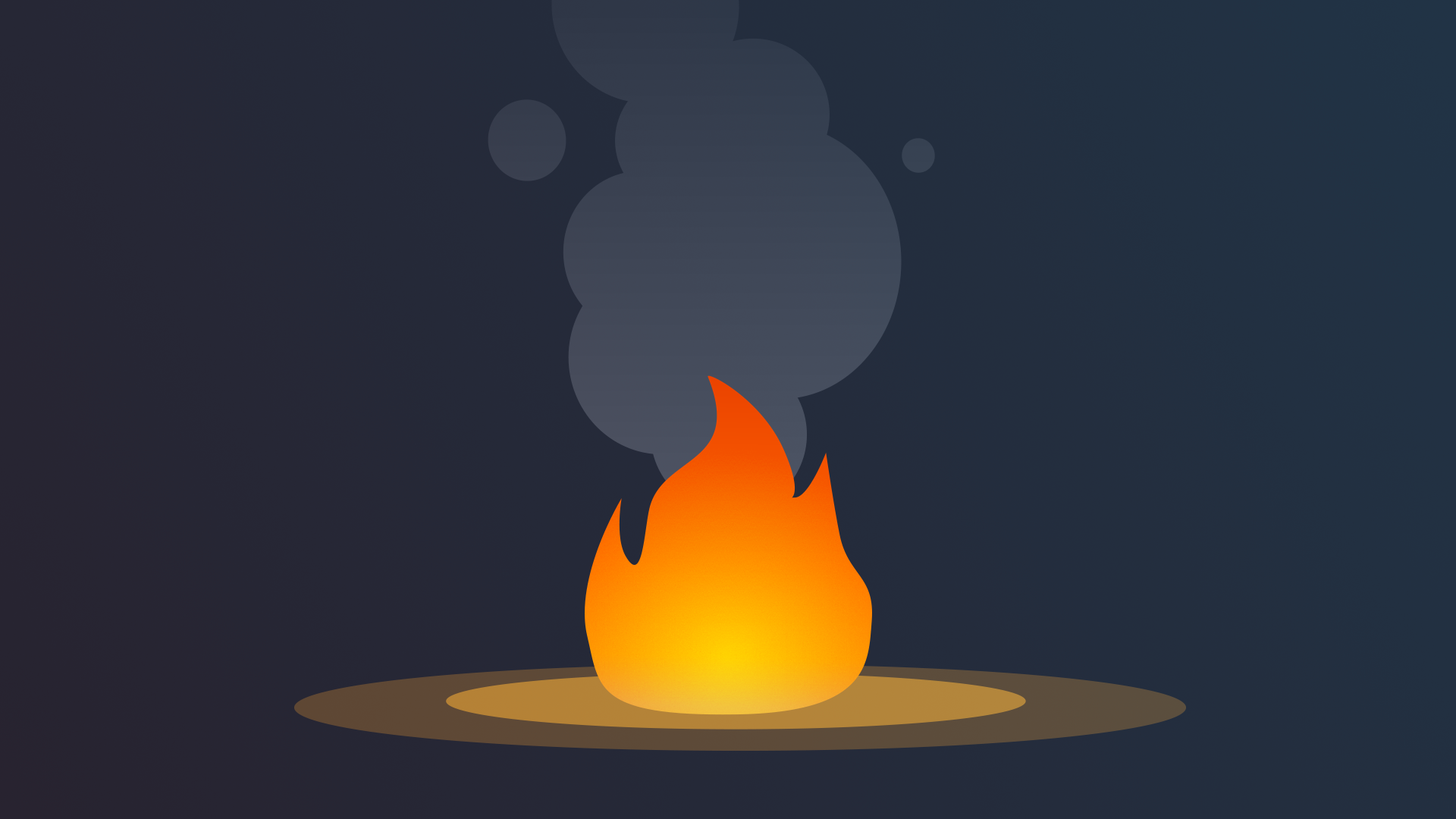
- More complex effects, like a campfire, might actually be made up of multiple individual particle systems. A fire could have flames, smoke, and sparks. In this tutorial, you’ll explore the individual elements of a fire, and then play around with the properties of those elements to produce a unique result.
By the end of this tutorial, you'll be able to do the following:
- Explain how individual particle systems can be combined to create more complex effects.
- Understand the purpose of the three default properties in a particle system: Emission, Shape, and Renderer.
1. Overview
You’re now familiar with what VFX are at a high level. In this tutorial, you’ll explore the components of the fire particle system to see how it really works. Then, you’ll configure the fire’s modules and properties to make it look even better.
2. Enable the sparks element
More complex VFX are often made of multiple individual Particle Systems. When combined, these individual systems can produce a more interesting result. Let’s add an additional element to this fire: some sparks.
1. In the Hierarchy window, expand the Fire_ParticleSystem_Prefab GameObject and select its inactive VFX_Sparks child GameObject.
2. Activate the VFX_Sparks GameObject using the checkbox next to its name in the Inspector window, then select Restart in the Particles window.
You’ll now see the sparks at the center of the fire.
The sparks from the fire add a lot, but they’re currently very simplistic. They’re just little white dots floating straight upward. Let’s make them look more like real sparks.
3. Enable additional modules for the sparks
To change the way a particle system looks or behaves, you need to enable and edit its modules. A particle system is made up of many different modules, each controlling a different aspect of the particle (for example, its color, size, velocity, etc).
1. In the Hierarchy window, select Fire_ParticleSystem_Prefab > VFX_Sparks.
Notice that the only modules currently enabled in the Inspector window are Emission, Shape, and Renderer.
The Emission, Shape, and Renderer modules are enabled by default on all Particle Systems; they control how many particles are emitted, where they’re emitted from, and what they look like, respectively. You can expand a module by clicking its name.
2. To make the sparks change color over time, enable and expand the Color over 2. To make the sparks change color over time, enable the Color over Lifetime module.
3. To make the sparks change size over time, enable the Size over Lifetime module.
4. To make the sparks waver randomly as they float upward, enable the Noise module.
You’ll immediately see these changes take effect in the Scene view while the particle effect is playing; there’s no need to restart the effect.
Using additional modules, the sparks are now much more dynamic, with changing color, size, and direction.
Note that these modules were already preconfigured with settings that would make sense for these sparks. You’ll learn how to work with these modules in a later tutorial.
4. Explore: Play around with the fire
You were probably told from a young age not to play with fire. Well forget all that. This fire can’t hurt you!
1. Before you start experimenting, select the Firepit GameObject in the Hierarchy window and duplicate it with Ctrl+D (macOS: Cmd+D).
This will allow you to experiment without any fear of losing changes to the original firepit. Only have one firepit active at a time, and rename your duplicate GameObjects with different colors, like “Firepit_Blue” or “Firepit_Green”.
2. Experiment with the settings on the various enabled modules.
Don’t worry if you don’t understand exactly what each one is doing yet - we’ll cover that in the next tutorials.
Here are some specific things you could try as you experiment:
- Enable and disable modules to see their effect
- Increase or decrease the Rate Over Time property in the Emission module
- Edit the Color property in the Color over Lifetime module
As you make changes, you may have to press the Restart button in the Particles panel again to see the effect.
You may also want to change the color of the Point Light GameObject attached to your fire.
When you’re finished experimenting, leave only your favorite firepit active in the scene by deactivating the other two in the Inspector window.
5. Next steps
In this tutorial, you played around with an existing particle system to understand how it was set up. Next, you will create a new particle system from scratch.