
Create a full-screen Dithering shader
Tutorial
intermediate
+25XP
35m
(11)
Unity Technologies
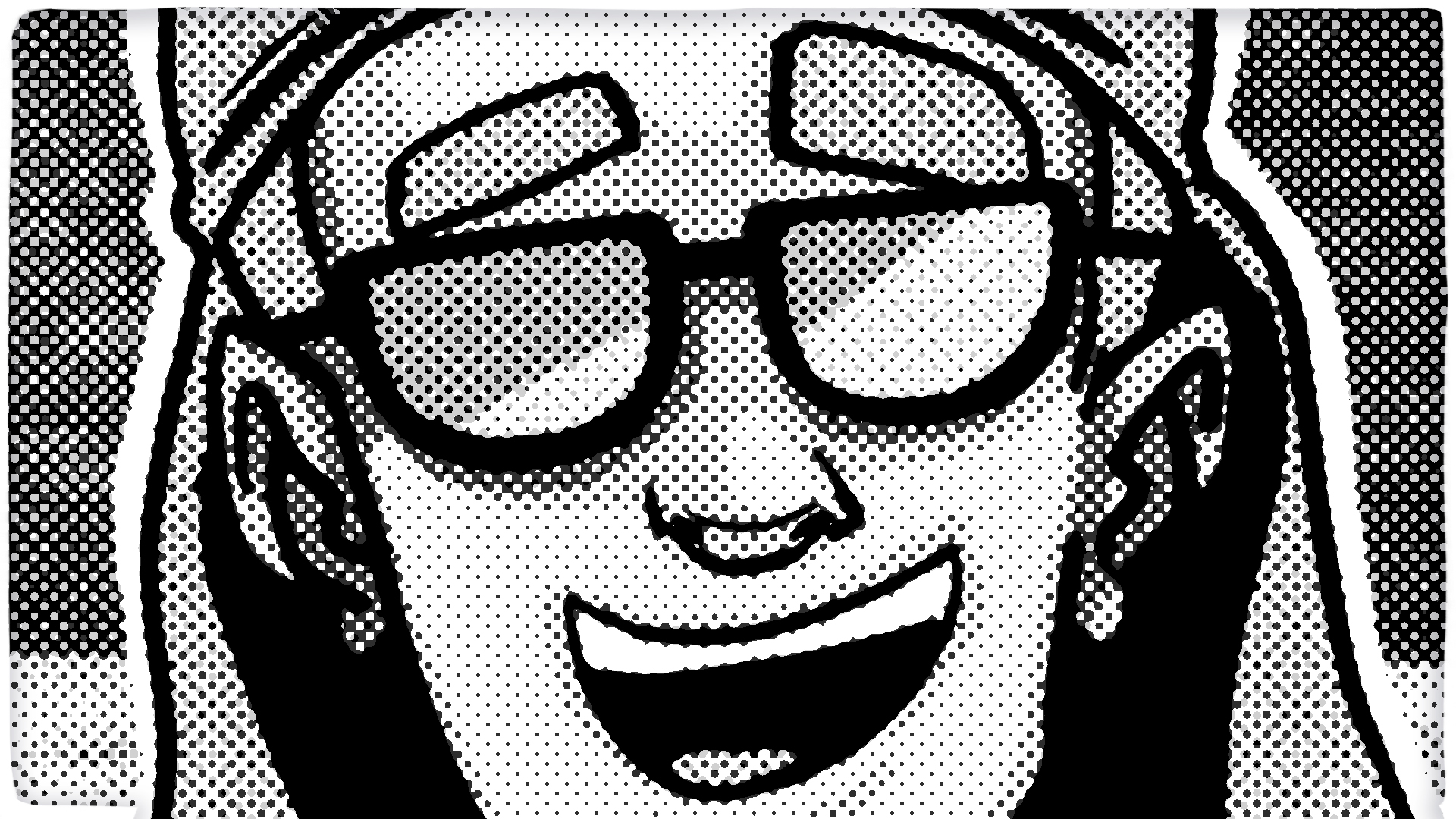
In this tutorial, you'll create a Dithering shader that uses patterned dots to simulate transparency and shading. This effect creates retro visual aesthetics that mimic the appearance of old display technologies like CRT monitors and early videogames. This is a fullscreen effect that affects the entire rendered scene. By the end, you'll have a working dithering shader with an optional colored variation.
By the end of this tutorial, you'll understand the following:
- The difference between object shaders and fullscreen shaders.
- How Bayer Matrix patterns create effective dithering.
- How to use the Scene Color node for fullscreen effects.
1. Overview
Dithering creates retro visual effects by using patterned dots or pixels to simulate different shades and transparency levels. This technique is widely used in games for the following purposes:
- Retro-styled games evoking early computer and console graphics
- Special visual effects or power-ups that change perception
The dithering effect you'll create mimics how old display technologies (like CRT monitors with limited color palettes) and games created the illusion of gray tones and transparency. Instead of smooth gradients, they used patterns of dots; more dots in dark areas, fewer in bright areas.
This is a full-screen shader, meaning it processes the entire rendered scene as a final step, modifying every pixel on screen rather than being applied to individual GameObject materials.
Important: This tutorial is part of the Get Started with Shader Graph course, which covers different units focused on different types of shaders. In case you haven't downloaded the project files, follow these instructions on how to create a new project and import the project assets.
2. Understanding Fullscreen shaders
Before creating the Dithering shader, it's important to understand how Fullscreen shaders differ from other shader types.
Object-based shaders (like Lit or Unlit):
- Applied to specific materials on GameObjects
- Process only the pixels of that specific GameObject
Fullscreen shaders:
- Process the entire rendered scene as a post-processing effect
- Run after (or during) the main rendering pass
- Modify every pixel on screen uniformly
- The material is applied through the rendering pipeline, not to objects
Fullscreen shaders are ideal for effects that should affect the entire visual output uniformly, such as camera filters, visual overlays, or retro display simulations like dithering.
3. Create the Dithering Fullscreen Shader Graph
You'll create a Fullscreen Shader Graph specifically designed for effects that affect the entire screen.
1. Create a new Fullscreen Shader Graph
- In the Project window, open the _GetStartedWithShaderGraph > Shaders folder
- Right-click in the Shaders folder and select Create > Shader Graph > URP > Fullscreen Shader Graph.
- Rename it "DitherFullScreen".
- Double-click the DitherFullScreen shader to open it in the Shader Graph window.
You're now ready to start building your Dither shader.
4. Create a material from the shader
Even though this is a fullscreen shader, you still need to create a material from it. The difference is that his material will be assigned to the rendering pipeline rather than directly to GameObjects.
To create a material from the shader, follow these instructions:
1. Create a new material
- In the Project window, right-click the DitherFullScreen shader and select Create > Material.
- Rename it "DitherFullScreen".
When you create a material directly from a shader, Unity automatically assigns that shader to the new material.
Note: If you can’t see the shader assigned in the material’s Inspector window, you can drag the shader and drop it onto the material to assign it.
The material is now using your DitherFullScreen shader. Even though the shader is empty right now, the material is ready to receive the shader properties you'll create in the following steps.
5. Add an interactive GameObject
You could set up the shader directly to a scene right now, but as you need to apply it to the render pipeline, doing so would not only affect the other shaders you have already created, but any scene in your project. To keep this effect independent from the rest of the project, you will instead trigger it through an interactable object.
In the following steps, you will attach a script to this object that enables the effect only when you interact with it and disables it when it is no longer in use.
To add an interactive GameObject, follow these instructions:
1. Open the Development_Scene
- In the Project window, open the _GetStartedWithShaderGraph > Scenes folder.
- Double click the Development_Scene to open it.
2. Add the GameObject to your scene
- In the Project window, locate the HeadSet prefab.
- Drag the HeadSet prefab into the Hierarchy window.
- In the Scene view, position the HeadSet GameObject over the small table that's already placed in the scene
This HeadSet GameObject will act as an activator. In later steps, you’ll attach the EquippableGlasses script to it, which will enable and disable the components responsible for the dithering effect in the scene while in use or not.
6. Locate the Renderer Asset
Unlike standard shaders that are applied to materials and rendered on individual objects, fullscreen shaders operate on the entire image produced by the camera. This means they must run after the scene has already been rendered, processing the final frame rather than a specific mesh or material. Because of this, fullscreen shaders cannot simply be assigned to a GameObject in the scene. Instead, they must be integrated into the rendering pipeline, where Unity can apply them as an additional rendering step that modifies the camera’s output.
To do this, you first need to locate the URP (Universal Render Pipeline) Asset used by the project. The URP Asset is the central configuration file that defines how Unity renders your project. It controls global rendering settings such as lighting quality, shadow behavior, post-processing support, and which Renderer Assets are used to draw the scene. Through these Renderer Assets, you can add Renderer Features, which allow you to inject custom rendering steps—such as fullscreen shader effects—into the pipeline.
1. Navigate to Graphics settings
- From the main menu, select Edit > Project Settings.
- In the Project Settings window, select Graphics from the left panel.
2. Find the Renderer Asset
- Locate the Default Render Pipeline property box. This is your URP Asset.
- Select the asset to highlight it in the Project window.
Now that you’ve located the URP Asset, you can see which Renderer Asset the project uses to render the scene. A Renderer Asset defines how GameObjects are drawn to the screen. It contains the rendering steps used by the camera, including lighting passes, shadows, post-processing, and any Renderer Features such as fullscreen effects.
3. Open the Renderer Asset
- Select the URP Asset highlighted in the Project window.
- In the Inspector window, locate the Renderer List section.
- Select the asset shown in the list (In this project it’s called PC_Renderer) to highlight it in the Project window.
- Select the Renderer Asset.
The Renderer Asset Inspector is now visible, showing the rendering configuration used by the camera, including the list of Renderer Features where you will add your fullscreen shader.
7. Add Full Screen Pass Renderer Feature
You can add Renderer Features to the Renderer Asset to extend URP's rendering capabilities. The Full Screen Pass Renderer Feature allows custom fullscreen shaders to process the rendered image.
To add the Full Screen Pass Renderer Feature, follow these instructions:
1. Add the Renderer Feature
- With the Renderer Asset selected, in the Inspector window, select the Add Renderer Feature button.
- Select Full Screen Pass Renderer Feature from the dropdown.
2. Assign the dithering material
- In the newly added Full Screen Pass Renderer Feature, , drag the DitherFullScreen material from the Project window into the Pass Material property box.
The camera view will turn gray. This is expected; the fullscreen shader is now active but still empty, so it renders a default gray color.
3. Configure Injection Point
- Set the Injection Point property to Before Rendering Transparents.
The Injection Point determines when in the rendering pipeline the fullscreen shader runs. Unity's rendering happens in stages: First, opaque GameObjects are rendered, then transparent GameObjects. After this, post-processing effects are added.
Before Rendering Transparents runs the dithering effect after opaque GameObjects but before transparent ones. This ensures that the dithering applies to solid objects in the scene, but transparent materials (like glass or particles) render correctly on top without being affected by the dither pattern.
The Renderer Feature is now configured and active, ready to use your dithering shader.
8. Configure the Graph Inspector for alpha blending
Now It's time to start working on your shader. The first thing needed is to change the Graph settings as the dithering shader needs to control transparency to create the patterned dot effect.
To configure the Graph Inspector for alpha blending, follow these instructions:
1. Set Blend Mode
- With DitherFullScreen open in Shader Graph, locate the Graph Inspector.
- In the Graph Settings section, set the Blend Mode property to Alpha.
This allows the dithering pattern to control transparency. Areas with no dithering will be transparent (showing the background), while other areas remain opaque, showing the dither pattern.
9. Create a Screen Position node
To apply the dither pattern consistently across the entire screen, you first need to retrieve the screen-space coordinates of each pixel on it.
To create a Screen Position node, follow these instructions:
1. Add a Screen Position node
- Right-click in the Workspace, select Create node, and search for and add a Screen Position node (Input > Geometry > Screen Position).
- Confirm the Mode property is set to Default.
The Screen Position node outputs the pixels’ position in screen-space coordinates. Unlike UV coordinates (which are relative to individual objects), screen-space coordinates are consistent across the entire viewport, making them perfect for fullscreen effects like dithering patterns where you want the effect to affect every pixel on screen.
10. Create and configure the DitherTexture property
Dithering works by using patterns of dots to simulate different shades and transparency levels. Instead of using smooth gradients, the image is broken into a pattern where some pixels remain visible while others are removed. The density of this pattern determines how light or dark an area appears.
To create and configure the DitherTexture property, follow these instructions:
1. Add a Texture2D property
- In the Blackboard, select the Add (+) button and select Texture2D.
- Rename it "DitherTexture".
2. Assign the Bayer Matrix texture
- Select the DitherTexture property in the Blackboard.
- In the Graph Inspector, locate the Default Value property, select the DitherNoise texture (_GetStartedWithShaderGraph > Resources), and enable the Use Tiling and Offset checkbox.
The dithering pattern used in this shader is defined by a special texture called a Bayer Matrix. The Bayer Matrix is a mathematical pattern specifically designed for dithering. It stores a set of threshold values arranged in a structured grid. When these values are compared with the brightness of the image, they determine which pixels remain visible and which become transparent. The DitherTexture texture contains a 4×4 Bayer Matrix pattern tiled 8 times.
Enabling Use Tiling and Offset allows you to control how the texture repeats and shifts across the screen directly from the Inspector window.
3. Sample the Texture 2D
- Right-click in the Workspace, select Create node, and search for and add a Sample Texture 2D node (Texture > Sample Texture 2D).
- Drag the DitherTexture property from the Blackboard into the Workspace.
- Connect the DitherTexture output to the Texture(T2) input of the Sample Texture 2D node.
- Connect the Screen Position Out output to the UV input.
By connecting the Screen Position to the UV, the dither pattern is applied to the entire screen, creating a consistent pattern across it.
4. Test the effect
- Connect the Sample Texture 2D RGBA(4) output (from this step) to the Base Color input of the Fragment Master Stack.
- Save your shader with Ctrl+S (macOS: Cmd+S).
In the Game view, you’ll notice the entire screen is now rendered as a black and white image with just the dither pattern applied all across it. In the next steps, you’ll blend this effect with the original scene based on brightness values.
Note: If the effect isn’t visible, check the material’s Inspector window and make sure all property references are properly assigned. In some cases, references made inside Shader Graph can be lost and you’ll need to manually reassign them.
- Once you are ready to continue, disconnect the Sample Texture 2D RGBA(4) output (from this step) from the Base Color input of the Fragment Master Stack.
11. Sample scene colors
The dithering effect is characterized by creating denser dither patterns in darker areas of the image and lighter patterns in brighter areas. To determine where these patterns should appear, you first need to retrieve the current colors of the scene.
To sample the scene colors, follow these instructions:
1. Create a Scene Color node
- Right-click in the Workspace, select Create node, and search for and add a Scene Color node (Input > Scene > Scene Color).
- Confirm the UV property is set to Default.
The Scene Color node samples the already-rendered scene, allowing you to access and modify the existing image. This is essential for fullscreen shaders because you’re not generating visuals from scratch, but instead processing the image that has already been rendered.
Now that you have the current scene colors, you need to determine how bright or dark each pixel is, since dithering patterns depend on brightness. To do this, you will convert the color values from RGB to HSV.
2. Create a Colorspace Conversion node
- Right-click in the Workspace, select Create node, and search for and add a Colorspace Conversion node (Artistic > Utility > Colorspace Conversion).
- Connect the Scene Color Out output to the In input of the Colorspace Conversion node.
- Set the conversion to RGB to the HSV.
Color can be represented in different ways. RGB (Red, Green, Blue) is the standard color model used for digital displays, but it mixes brightness and color information together, which makes it difficult to extract the brightness value. On the other hand, HSV separates color into three components: Hue (the actual color), Saturation (how vivid the color is), and Value (the brightness of the color).
By using the Colorspace Conversion node and converting to HSV, you can easily extract the Value channel, which directly represents the brightness of each pixel. This makes it straightforward to determine where the dithering pattern should be stronger or lighter based on how bright or dark the image is.
3. Create a Split node
- Right-click in the Workspace, select Create node, and search for and add a Split node (Channel > Split).
- Connect the Colorspace Conversion Out output to the In input of the Split node.
The Split node separates the HSV vector into individual components: R/H, G/S, B/V so they can be used independently. You'll use the B(1) output, which represents the Value (brightness) channel.
4. Test the effect
- Connect the Split B(1) output (from this step) to the Base Color input of the Fragment Master Stack.
In the Game view, you’ll notice the scene is now displayed in black and white. This represents the brightness (value) of the scene: lighter areas correspond to brighter parts of the image, while darker areas represent less illuminated regions. This information will be used in the next steps to determine where the dithering effect should be stronger and where it should appear lighter or more transparent.
- Once you’re ready to continue, disconnect the Split B(1) output (from this step) from the Base Color input of the Fragment Master Stack.
12. Apply dithering threshold with a Step node
Now that you have both the brightness information of the scene and the dither texture sampled across the entire screen, you need to combine them to control how dense the dithering pattern appears in different areas of the image. Brighter areas should remain more visible, while darker areas should contain more of the dither pattern.
To combine these values, you will use the Step node. The Step node compares two values and outputs either 0 or 1 depending on whether the input value passes a given threshold. In this case the threshold value is defined by the dither texture itself.
To apply a dithering threshold with a Step node, follow these instructions:
1. Create a Step node
- Right-click in the Workspace, select Create node, and search for and add a Step node (Math > Round > Step).
- Connect the Sample Texture 2D RGBA output (the dither pattern) to the Edge input of the Step node.
- Connect the Split B output (brightness) to the In input of the Step node.
What happens during the Step comparison is that each pixel compares its brightness value with a threshold value taken from the Bayer Matrix pattern. If the brightness is higher than the threshold, the pixel becomes visible (output = 1). But if the brightness is lower than the threshold, the pixel becomes transparent (output = 0).
This process is calculated every frame. Because the Scene Color node samples the rendered scene, the values update as the camera moves. This means the dithering pattern also updates each frame, ensuring the effect always matches what is currently visible on screen.
13. Connect to Base Color
The last step is to connect the logic of your dithering effect to the shader output in the Master Stack.
To connect to the Base Color node block, follow these instructions:
1. Connect to the Base Color
- Locate the Fragment Master Stack.
- Connect Step Out to the Base Color input.
- Save your shader with Ctrl+S (macOS: Cmd+S).
The dithering shader is now complete. The Step output controls which pixels are visible or transparent based on the brightness-threshold comparison, creating the retro dithered appearance.
Go to the Game view to see the shader effect in your entire scene.
One important thing to note is that final output is in black and white, this is because only the V (Brightness) component of the scene is being used for the shader calculations. This means all color information has been excluded. In the next tutorial, you’ll learn how to incorporate color back into the shader.
14. Add the EquippableGlasses script
The EquippableGlasses script will enable and disable the dithering Renderer Feature based on player interaction.
Because the effect will be controlled through the script, you should disable the Renderer Feature so it’s inactive by default.
To add the EquippableGlasses script, follow these instructions:
1. Disable the Render Feature
- In the Renderer Asset’s Inspector window, disable the Full Screen Pass Renderer Feature property.
The dithering effect disappears from the view. It will be re-enabled by the EquippableGlasses script when you interact with the HeadSet GameObject.
2. Add the script component
- In the Hierarchy window, select the HeadSet GameObject.
- In the Inspector window, select the Add Component button.
- Search for and add the EquippableGlasses script (_GetStartedWithShaderGraph > Scripts).
3. Assign the Renderer Feature
- In the EquippableGlasses component, assign the Full Screen Pass Renderer Feature you created to the Renderer Feature property.
Important: Make sure you assign the correct Renderer Feature and do not reuse the ones we created for Sample_Scene. You can select the Renderer Feature to highlight it in the Project window and verify which material is assigned in its Inspector window.
The script will now enable the Renderer Feature when you interact with the HeadSet GameObject (press E) and disable it when you interact again.
Important: The EquippableGlasses component also includes two Events. These events allow you to call methods on other GameObjects, making the script flexible for triggering additional effects; for example enabling or disabling objects in the scene. If you want to explore this further, we encourage you to review the script.
15. Test the dithering effect
The final step is to verify that the fullscreen dithering effect works correctly.
To test the dithering effect, follow these instructions:
1. Test the effect
- Select the Play button in the Unity Editor.
- Move close to the HeadSet GameObject and press E to interact with it.
Move the camera in the Game view. The entire scene should now have a retro dithered appearance, with darker areas showing more of the dot pattern. You can fine-tune the dither pattern by adjusting the tiling values in the material.
2. Adjust tiling values
- In the Project window, select the DitherFullScreen material.
- In the Inspector window, locate the DitherTexture property and adjust the Tiling values.
Try different tiling values to see how they affect the pattern. Higher tiling values (>10) create denser patterns with smaller dots, while lower tiling values (<5) produce larger, more visible dither patterns. Using different X and Y values creates non-square patterns, which can be useful for artistic effects.
Note: A good starting combination is X = 5, Y = 8, which provides a balanced pattern where the dither dots are visible without overwhelming the image.
3. Exit Play mode
- Press E again to disable the effect. The screen returns to normal rendering
- Select the Play button again to exit Play mode.
The dithering shader now creates a full-screen retro effect by processing the entire rendered scene uniformly.
16. Create prefab and save
Once your DitheringFullScreen shader is complete, save your work and create a prefab so the object can be reused easily.
To create a prefab and save your work, follow these instructions:
1. Create a prefab of your object
- In the Project window, open the Prefabs > _My Objects folder.
- Rename the HeadSet GameObject “HeadsetDither”.
- Drag the HeadsetDither GameObject from the Hierarchy window into the _My Objects folder. This creates a prefab that stores the GameObject, its material, and its components.
- In the Hierarchy window, select the HeadsetDither GameObject and disable the checkbox in the GameObject header to deactivate it. This helps keep the scene organized.
- From the main menu, select File > Save.
Important: Saving (Ctrl+S (macOS: Cmd+S)) with the Shader Graph window open only saves the shader. Scene changes must be saved separately.
The prefab is now saved and ready to reuse.
17. Review your Shader
Take a moment to review the final shader graph created in this tutorial and compare it with your own. Make sure all nodes are properly connected and that all properties are correctly declared.
18. Next steps
Congratulations!
You've created a complete dithering shader that converts scene brightness into an ordered dither pattern using a Bayer Matrix texture. You now understand how to sample the rendered scene with the Scene Color node, convert color data to HSV to isolate brightness, and use nodes like Step to control pixel visibility. In the next tutorial, you'll enhance this shader by adding the ability to process and display color, allowing the dithering effect to preserve more of the scene’s original appearance.