
Create 2D sprite animations
Tutorial
Beginner
+0XP
40m
(85)
Unity Technologies
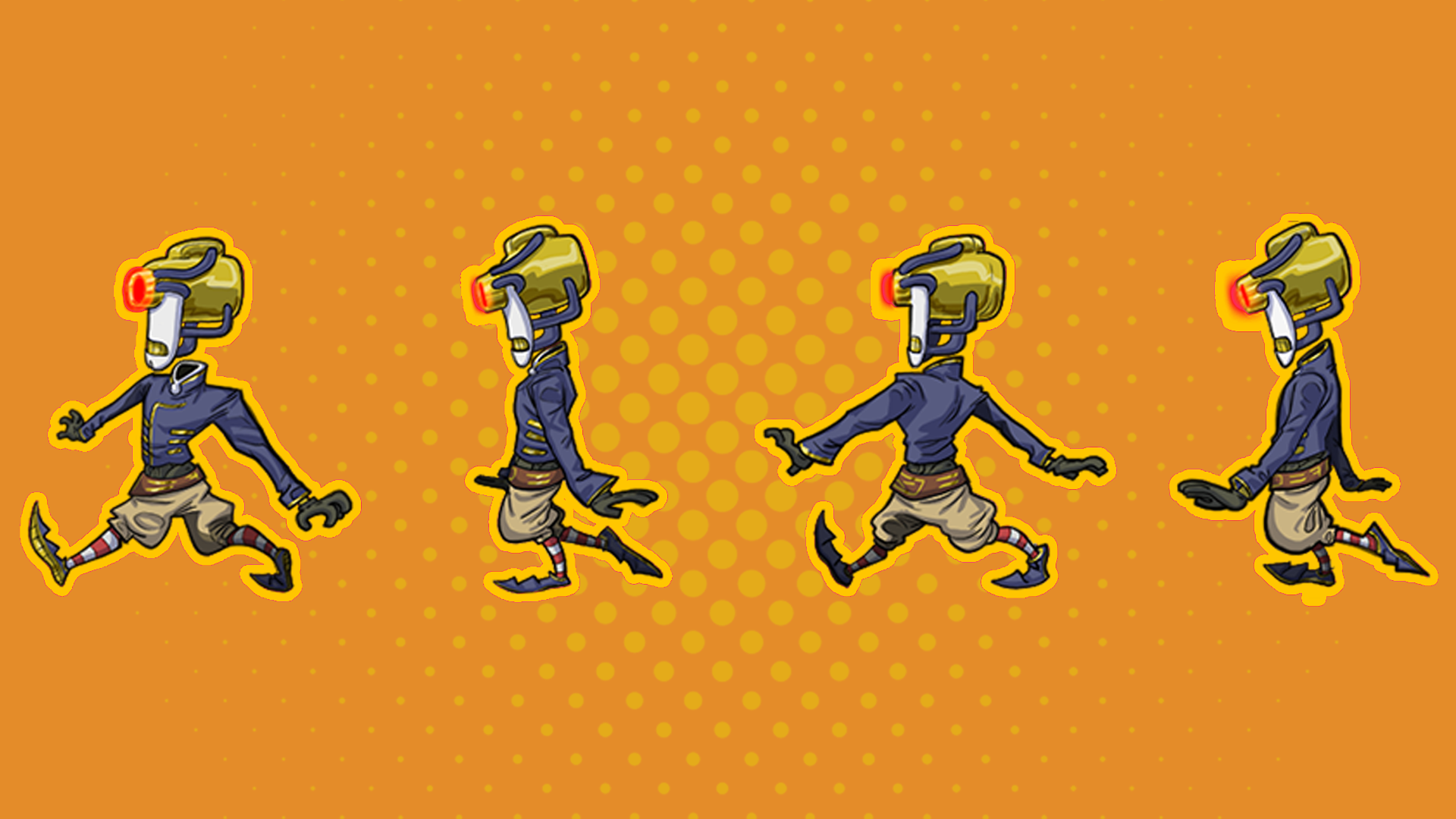
Animations make your characters much more engaging. In this tutorial, you’ll configure animations for the enemy.
By the end of this tutorial, you’ll be able to do the following:
- Create a new Animator Controller.
- Configure animation clips using sprite assets.
- Create a Blend Tree to play character animations.
1. Overview
The enemy in your game works right now, but its gliding patrol doesn’t look very natural, even for a robot. You can enhance the enemy that you’ve created by adding animations to make it move in more interesting ways and then apply what you learn to the player character too.
Note: For the purposes of this tutorial, we chose to use the Ruby’s Adventure asset set, and the images used in instructions will reflect this. If you chose another asset set, the file names will be the same, but in your corresponding theme folder.
2. Create an Animator Controller
In Unity, the Animator component is used to play animations for a GameObject. The following is a brief summary of how animation is handled in Unity:
- Animation data is stored in special assets called animation clips. You’ll create animation clips for the enemy using sprites that we’ve provided.
- You can control how these animation clips play on a GameObject with an Animator Controller asset assigned to the Animator component.
Important: If you’re new to animation in Unity, the Creative Core: Animation pathway is a great place to start. It walks you through the basics step-by-step.
To create an Animator Controller for the Enemy prefab, follow these instructions:
1. Open the Enemy prefab in prefab editing mode.
2. In the Inspector window, select the Add Component button and search for and add an Animator component.
3. In the Project window, navigate to the _2DAdventureGame > Animation > [Your Chosen Project] > Enemy > AnimationClips folder.
4. Right-click inside the AnimationClips folder and select Create > Animation > Animator Controller from the context menu. Name the controller “Enemy”.
5. In the Hierarchy window, select the Enemy GameObject.
6. In the Inspector window, locate the Animator component. Use the Controller picker (⊙) to select the Enemy controller you just created, or drag it from the Project window and release it over the Controller setting.
3. Create a new animation clip
Now you’ve set up the Animator Controller, you need to create an animation clip to contain a walking animation for your enemy character.
To create the animation clip, follow these instructions:
1. From the main menu, go to Window > Animation > Animation – or use the shortcut Ctrl+6 (macOS: Cmd+6).
You can use the Animation window as it is, or dock it in a convenient location in your Editor layout.
The Animation window is laid out as follows:
- The leftmost side contains properties that are animated.
- The rightmost side is a timeline that shows keyframes: frames which mark the start or end of a transition in states for those properties.
Important: If you’d like a deeper explanation of how the Animation window works, we recommend checking out Creative Core: Animation.
2. Confirm that the Enemy GameObject is still selected, then select the Create button to make a new animation clip.
3. Inside the Animation > [Your Chosen Project] > Enemy > AnimationClips folder, save the Animation Clip as “EnemyLeft”.
4. Create the left walk animation
Your enemy will be able to move in every direction. To start, you’ll create your first animation to simulate the basic walking cycle to the left using four different sprites that we’ve provided.
You can create the illusion of movement in Unity by switching which of these sprites is rendered for the GameObject over time, like a physical flipbook animation.
To configure your first animation, follow these instructions:
1. In the Project window, navigate to Assets > _2DAdventureGame > Art > [Your Chosen Project] > Characters and find the EnemySheet asset.
This asset is a sprite atlas (also called a sprite sheet) – a file that contains multiple sprites in a single image, like the tilesets you’ve previously split into separate sprites.
2. In the Inspector window, set the Pixels per Unit property to 100, then select the Apply button.
This setting will ensure that the Enemy animations are the same size as your Enemy GameObject in the scene.
3. Select the arrow icon on the right side of the asset to reveal the individual sprites within the sprite atlas.
4. Hold Shift and select the four sprites showing the enemy facing the left side, which will select all four.
These sprites are the following:
- [Enemy Name]WalkSides1
- [Enemy Name]WalkSides2
- [Enemy Name]WalkSides3
- [Enemy Name]WalkSides4
5. Drag the sprites from the Project window and release them over the Animation window.
This process creates an animation using the four sprites.
6. In the Animation window toolbar, select the Play button to preview the animation in the Scene view.
The animation will play very quickly!
7. In the upper-right corner of the Animation window, next to the timeline scale, select the More (⋮) menu and enable Show sample rate if it’s not already enabled.
A Samples property will display above the properties list on the leftmost side of the Animation window.
The Samples property controls the number of frames per second that Unity renders the Enemy GameObject’s sprite. The default value is 60, which means that each sprite is only displayed for 0.016 seconds (1 second /60 frames). Unsurprisingly, this is very fast!
8. Set the Samples property to 4, then play the animation again.
Now each sprite is shown for 0.25 seconds (1 second /4 frames). This speed is much more appropriate for the character.
9. If you want to, adjust the speed further until you’re happy with the rate of the animation.
5. Create the right walk animation
You might have noticed that there is no set of sprites walking to the right in the Enemy sprite atlas – this is because you can just flip the sprites to create an animation for the opposite direction!
To create a right walk animation, follow these instructions:
1. In the Animation window, open the EnemyLeft dropdown and select Create new Clip… Name your new clip “EnemyRight”.
2. Drag the same four [Enemy]WalkSides sprites from the Project window and release them over the Animation window.
3. Set the Samples property to 4.
4. On the leftmost side of the Animation window, select the Add Property button.
5. Use the foldout (triangle) to expand the Sprite Renderer component and enable the Flip X property, then select the Add (+) button.
The Flip X property controls whether the sprite is horizontally flipped for a given frame.
6. Select the first frame of the animation in the timeline (Frame 0), then enable Sprite Renderer.Flip X.
7. Select the fourth frame and check that Sprite Renderer.Flip X is enabled for the frame.
This will ensure that the sprite stays flipped for the entire animation. The diamond icons aligned with the Sprite Renderer.Flip X property at frames 0 and 4 indicate that there is a change in the value of the property at that frame.
8. Save your changes to the Unity project.
Additional animation clips for each direction
The process of creating animation clips can be time-consuming, so we’ve pre-made the rest of the animation clips that you’ll need for the enemy character. The two clips that you’ll use in the rest of this tutorial are EnemyUp and EnemyDown, located in the Animation Clips folder. These pre-configured assets will be used as you create the enemy Animation Blend Tree in the next tutorial.
6. Next steps
In this tutorial, you’ve created two animations for the enemy that will be paired with the two preconfigured animations supplied in the asset package. Next, you’ll configure those animations to play based on in-game data – in this case, the Enemy GameObject’s direction of movement.